Two shelves on the Add rail hold sections that already exist. A shared section is the same section on every page that has it - change it once and it changes everywhere. A ready-made section is a starting point: placing it makes a copy, and the copy never looks back.
The screens pictured here are an example ministry’s, so the names and figures in them are not yours. Everything they show works the same way in your own admin.
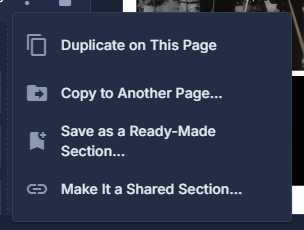
To share a section, open its menu and choose Make It a Shared Section.
Give it a name for the list. It is then on this page as a shared section, and offered on the Shared sections shelf of every other page. Not a header, and not a section holding a form.
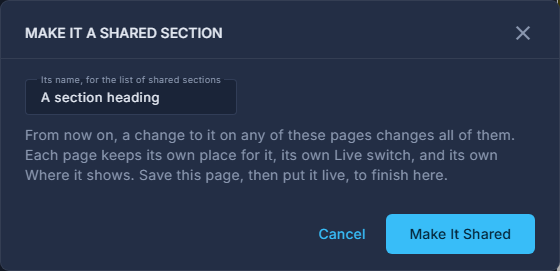
Naming a shared section. To put a shared section on another page, open that page and click it on the Shared sections shelf.
It arrives switched off, so you can place it before visitors see it. The card says how many pages it is on.
To edit a shared section, edit it on any page that has it.
The pop-up says it is shared. The change goes to every page when you publish this page.
To keep a section to start from again, choose Save as a Ready-Made Section.
Name it for the Ready-made shelf. Every site has the built-in ones; the ones you save carry your name and can be renamed or deleted from their chip's menu.
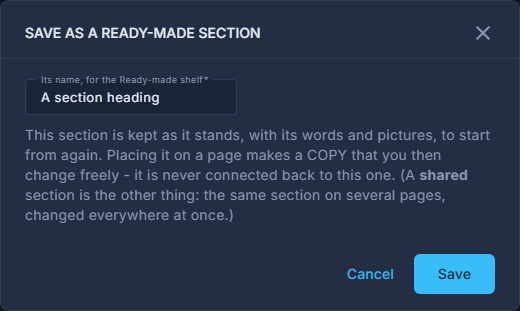
Saving a section as ready-made.
Removing a shared section from one page does not remove it from the others, and does not delete it. Make a Separate Copy for This Page, in its pop-up, turns this page's copy into an ordinary section.