A section is a unit. It can be moved up and down the page by its grip, copied below itself, copied onto another page, or deleted - and since 21 September all of that works on a section inside a tab too.
The screens pictured here are an example ministry’s, so the names and figures in them are not yours. Everything they show works the same way in your own admin.
Drag a section by the grip at its left to move it.
The header cannot move, and nothing can move above it.
Open its menu and choose Duplicate on This Page.
The copy appears under it, switched on, with everything the original had.
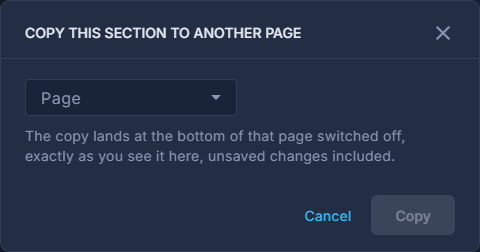
Choose Copy to Another Page, and pick the page.
The copy lands at the bottom of that page switched off, so nothing changes there for visitors until somebody opens the page, drags it into place and turns it on; a Header goes to the top of a page that has none. What you see is what is copied, unsaved changes included, and this page itself is not saved by it. A shared section is placed as itself, not copied.
Press the red trash can to delete a section.
It asks first. Undo brings it back until you leave the page, and nothing is saved until you press Save; after the page has gone live, History brings it back.
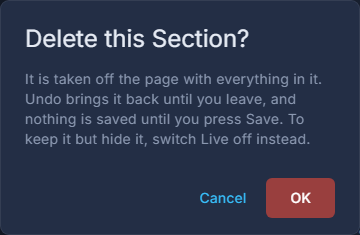
Deleting a section asks first. Switch a section off instead when you may want it back.
Live off keeps it on the page and out of sight.