A page keeps two copies: what is saved in the admin, and what is on the site. Save moves your work into the first; Publish copies it to the second. That is what lets you work on a page for a week while visitors keep seeing the old one, and what lets you go back.
The screens pictured here are an example ministry’s, so the names and figures in them are not yours. Everything they show works the same way in your own admin.

Press Save in the designer's own bar.
"Unsaved changes" turns back into "All changes saved". Undo still works after a save.
Press Publish in the bar above.
A pop-up lists what is going out and anything worth a look first - a button that goes nowhere, a picture with no description, a missing page title. Fix opens the thing to fix; none of them stops you, and the button then says Publish Anyway. A page not on the site yet is also offered turning on and a place in the Header menu. Until you publish, the site keeps showing what was there before.
To throw the waiting changes away, press Discard Changes.
It puts the page back to what is on the site. It cannot be undone.
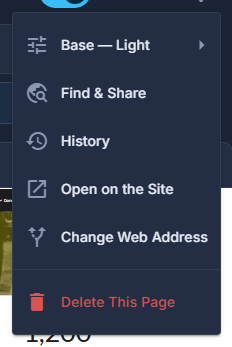
To go back to an older version, open the menu at the end of the bar and choose History.
Every version that has been on the site is kept. Putting one back loads it as waiting changes, so you can look at it first and publish it the ordinary way.
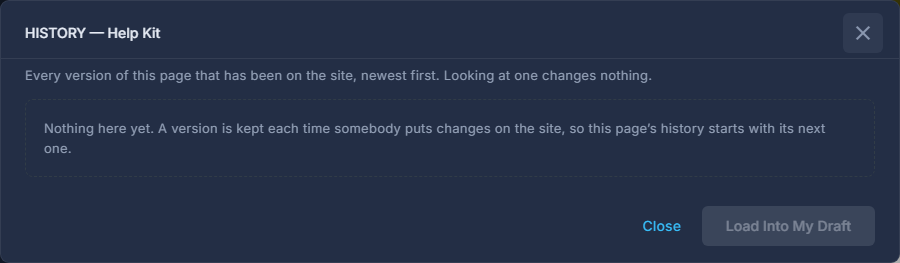
History: every version that has been on the site, and which one is on it now. To make a page appear on a date, choose Schedule Going Live in the same menu.
Only for a page that is not on the site yet. The date shows in the menu once it is set, and "Stop Waiting" cancels it.
Publishing changes and being On the site are two different things. Publish turns a page on when you leave that box ticked; the On the site switch in the bar takes it off again.