Every page on your site is the same kind of thing: a stack of sections down the page, each holding columns, each column holding elements - a heading, a picture, a button. Once you know those three words you know the whole designer, because everything in it is one of them.
The screens pictured here are an example ministry’s, so the names and figures in them are not yours. Everything they show works the same way in your own admin.
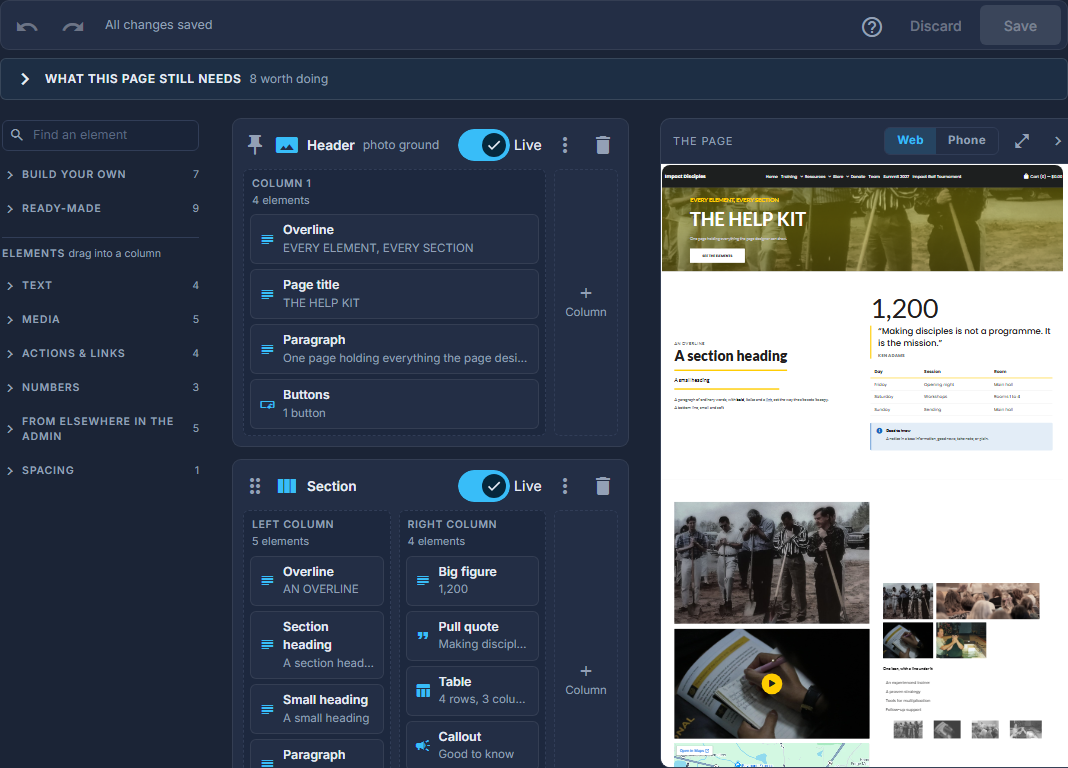
Open Site and choose a page from its Pages list.
The bar above the designer belongs to the page: its address, whether it is on the site, and Publish, which puts your changes out.
Find things to add on the left.
Build your own holds the kinds of section. Ready-made holds sections that arrive already arranged. Shared sections are ones used on more than one page. Under them, the elements, on shelves: Text, Media, Actions & links, Numbers, From elsewhere in the admin, Spacing.
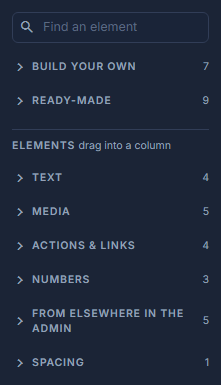
The Add rail. Type in the box at the top to find an element by name. Arrange the page in the middle.
Every section is a card. Its columns sit side by side inside it, and the elements sit in their columns in order. Drag anything by its grip to move it; drag a chip from the rail to add it.
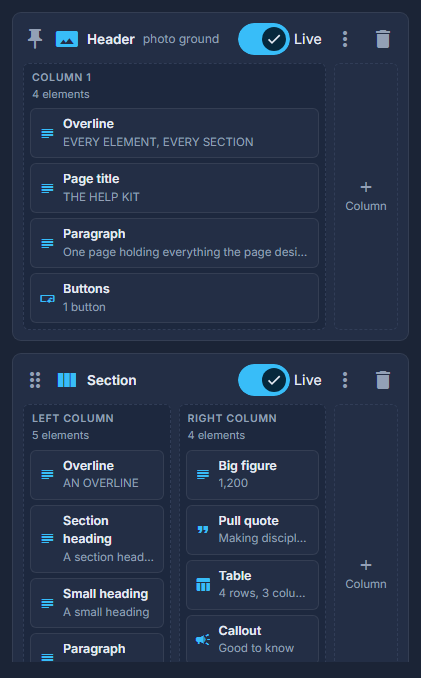
The structure: one card per section, columns inside it, elements inside them. On an empty page, press Describe It and Let AI Draft It to have a first draft written.
This needs the AI writing add-on, which is switched on per site; without it the card is not shown. Say what the page is for and give the facts - dates, places, prices, who it is for - and press Draft. The AI writes a header, a few sections and a closing button from only what you gave it, laid out as ordinary sections, exactly as a starter is. Read every word, add pictures and give each button somewhere to go, then Save. Nothing is saved until you do.
Or press Start From a PDF to turn a flyer or a leaflet you already have into a page.
Same add-on and the same rule as the AI draft: hidden without it, greyed until a key is set. Choose the PDF, and say what the page is for if it helps - "Leave out the giving appeal on the back page" is the kind of thing that box is for. Reading a long PDF can take a minute or two. What comes back is ordinary sections you can edit like any others, and nothing is saved until you press Save.
Read the two lists it leaves behind before you save.
They appear in the checklist at the top of the designer. "In the PDF, not on the page" is what it could not build - the answer to "what did I lose?" - and it is a record of that one import, so Dismiss This List when you have read it. "Needs you before this page works" is worked out from the page itself, so it is the same answer the page would give you an hour later, and it clears as you fix things.
Watch the page on the right.
That is your real page, drawn with your unsaved changes. Web and Phone show it either way. Click anything on it to select it in the structure. Double-click words or a button's label to type right there on the page: Enter or clicking away finishes a heading or a button, Esc puts the words back. Double-click anything else on it to open its settings. Words with colours, alignment or lists open in their settings instead, so nothing is lost. Nothing is saved yet.
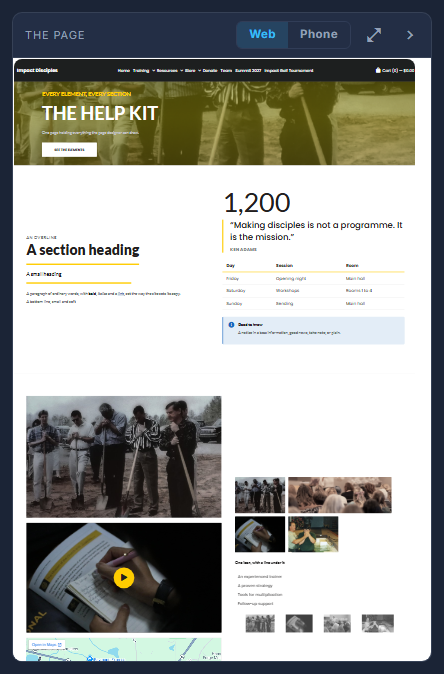
The page, as visitors will see it, with the Web | Phone switch above it. Double-click anything to edit it.
A section, a column or an element opens in a pop-up with its settings on the left and that one section drawn beside them. Press Done when you have finished; nothing is saved yet.
Press Save to keep your work, and Publish when it is ready.
Save keeps your work in the admin. Publish, in the bar above, saves anything unsaved and puts it where visitors see it. Undo and Redo walk back through everything since you opened the page.

Undo, Redo, whether anything is unsaved, Discard and Save.
The panel on the right can be dragged narrower or wider by its edge, and folded away with the arrow at its corner. The designer remembers the width for each page.