An element is one thing in a column: a heading, a picture, a button, a form. The Add rail lists them on six shelves, and every one is edited the same way - double-click it, change its settings beside a drawing of its section, press Done.
The screens pictured here are an example ministry’s, so the names and figures in them are not yours. Everything they show works the same way in your own admin.
Drag an element from the rail into one of a Section's columns, or click it.
A click puts it in the column you have selected. On a page with no column yet, dropping or clicking an element brings a new one-column Section with it, switched off like any section you add. Type in the box at the top of the rail to find one by name.
Double-click the element to edit it.
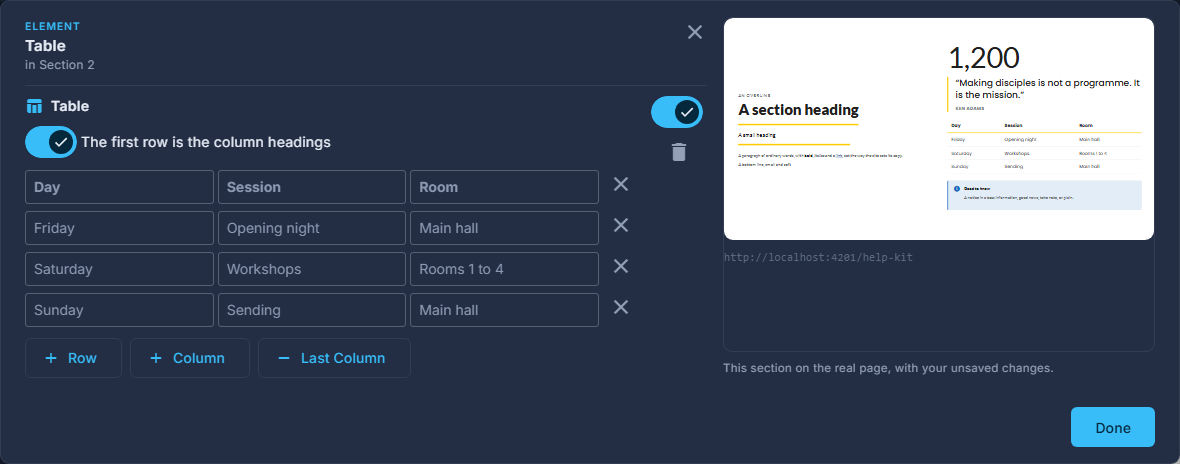
The pop-up shows only the settings that kind has: words, a picture, a link, a figure. What you change is drawn in the section beside it as you go.
Change what it is shown as, where a family of looks exists.
A Figure can be a number that counts up, stars out of five, or a bar towards a goal. Links can be the links you type, this page's own headings, or a trail back to Home. Social icons can be your accounts or share buttons. Buttons can be one that opens a pop-up. Picture grid can be a row of logos; Icon can be a list of lines beside the icon. Choosing one keeps what you typed.

"Shown as": one element, several looks. Reorder elements by dragging them, between columns too.
A piece dragged from the left column to the right moves; the band stays where it is.
Remove an element with the red trash can in its pop-up, or switch it off to keep it.
An element that is switched off is kept on the page and not drawn.
Some elements draw content that lives elsewhere - a product, a team member, your contact details - and say so when you open them. Change the thing where it lives and every page showing it changes too.