The Media shelf holds what a visitor looks at rather than reads. A Picture is one image; a Picture grid is a folder of them; a Video plays from YouTube, Vimeo or a file; a Map is Google's; an Icon is the smallest picture of all.
The screens pictured here are an example ministry’s, so the names and figures in them are not yours. Everything they show works the same way in your own admin.
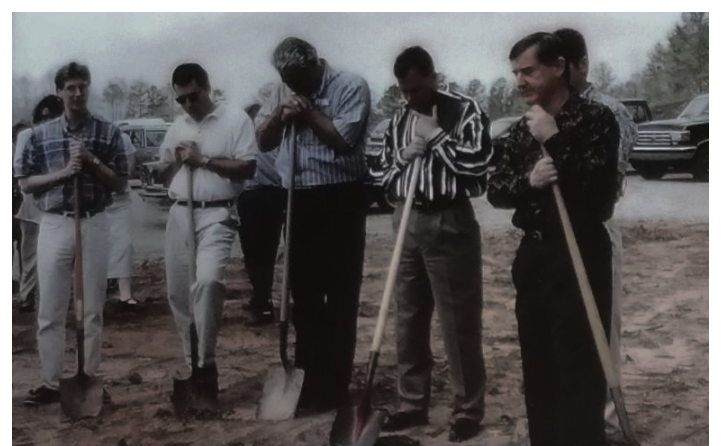


Picture: choose the image, cap its height, and say whether it opens full screen.
Natural fills the column; short, medium and tall cap a portrait picture so it does not own the column. Use the site's own optimised copies where you have them.
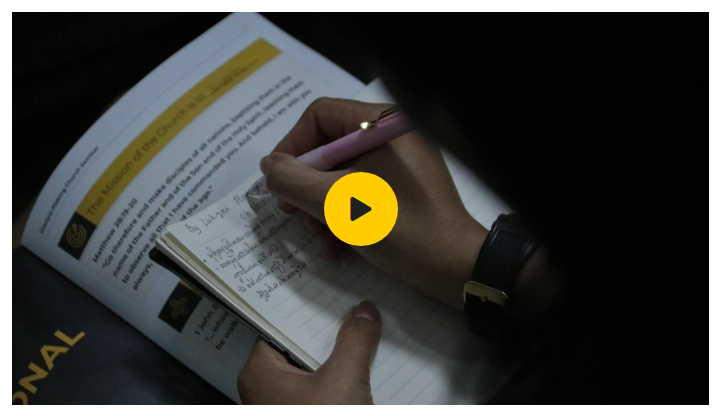
Video: paste the YouTube or Vimeo link, or choose a file, and pick the still.
The still is what shows before play. A video file can loop.
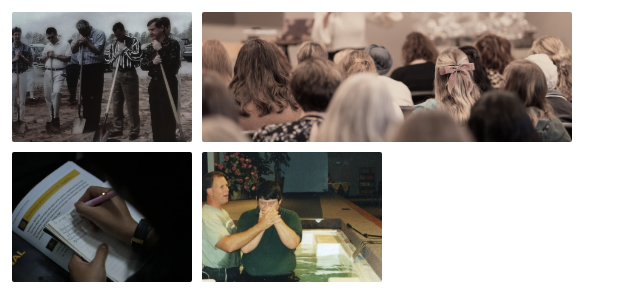
Picture grid: choose a folder in Storage, then the layout.
The photos are read from the folder when you choose it and saved with the page. Added or removed photos later? Press Refresh from Folder, then Save. A gallery keeps its own list, with captions, and any photo can be hidden without deleting it.
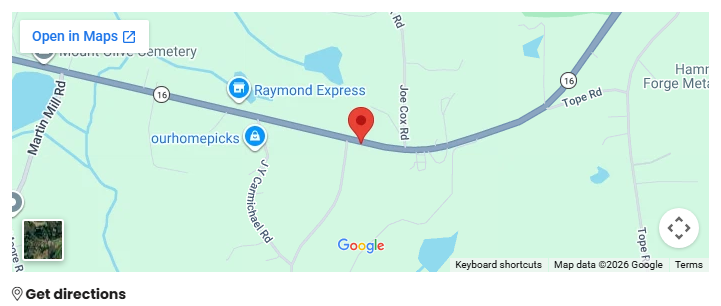
Map: type the address, or leave it empty for the ministry's own.
The map is Google's and loads when a visitor scrolls to it. The caption is the words under it.
Icon: pick the icon and its size; add words under it if you like.
Shown as "A list of lines, each beside the icon" turns it into a checklist: one line per item.
Logo strip: shown as "A row of logos" on a Picture grid.
Add the logos one by one. Grey makes a mixed set of logos read as one row.