Every picture on the site is fitted into a box of a fixed shape. Some boxes show the whole picture; most crop it to fit, keeping the middle and losing the edges. A header is a band the full width of the screen and only 300 to 550 pixels tall, so an ordinary photo shape loses about half its height. Make each picture in the shape of its box, or set its Photo position so the crop keeps what matters, and nothing gets cut that you did not choose.
The screens pictured here are an example ministry’s, so the names and figures in them are not yours. Everything they show works the same way in your own admin.
Page header, on a computer: 1920 × 600, with the subject in the middle.
Cropped to fit a band the full width of the screen: Short is 300 tall, Banner 480, Standard 500, Poster 550. Words that outgrow the band make it taller. A Media band is the same.
Page header, phone picture: 1080 × 1080.
Optional, in the header's settings. Shown whole on a Poster or Banner header; cropped to about a square on Standard and Short.
Summit picture while a summit is on sale: 1400 × 550, subject centred.
Events, Summit, then the Public Page step. Cropped on a computer, shown whole on a phone and in the event app.
An ordinary event's picture: 1600 × 900.
Shown whole on the event's own page, and inside its card in any list.
Product cover: 800 × 1200, upright, as a JPEG or PNG - never WebP.
Shown whole in the store, and sent inside emails, which cannot show WebP.
Team member photo: 600 × 600.
Cropped to a square, 200 wide on a computer and 150 on a phone.
Coach photo: 600 × 600.
Shown whole on the summit page and in the event app; a square sits beside the others.
Picture cards, and the cards of events, books and the team: 1200 × 800.
Shown whole. Make every picture in a list the same shape, or the row will not line up.
Picture rows: 600 × 600. Quote cards: 600 × 720.
Picture rows crop to a 175-pixel square. Quote cards crop to 175 wide by at least 210 tall.
Alternating rows, numbered rows and a timeline: 1200 × 800.
Shown whole, the width of the column.
Picture slides on the home page: 1920 × 800, with no words on the picture.
Cropped to fit a band 560 tall on a computer and 420 on a phone. The words go in the slide's own title and copy, so they stay readable on every screen.
Picture element: 1200 wide, any height.
Shown whole at the width of its column, unless you cap its height - then it is cropped to Short 360, Medium 520 or Tall 640.
Picture grid: 1200 × 900; a gallery: 900 × 900.
Tiles crop to 4 by 3; a gallery's tiles crop to squares.
Logo strip: 320 × 128 PNG with a transparent background. The site's own logo: 130 × 120.
Each logo is shown whole inside a box 160 wide by 64 tall; the site's logo in a box 65 by 60.
Share picture, in Find & Share: 1200 × 630.
The card Facebook, X and messaging apps draw when somebody shares the page.
A video's still: 1280 × 720.
The picture shown before play, in a 16 by 9 box.
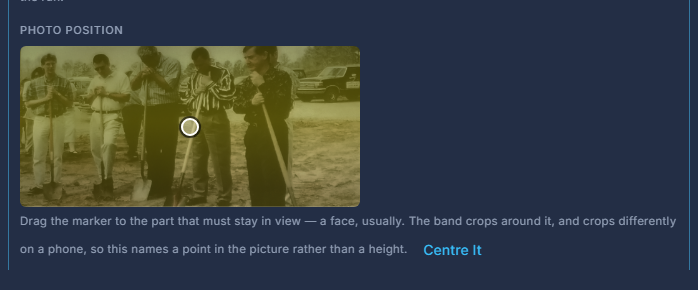
Where a picture is cropped, drag its Photo position to what must stay in view.
Headers and media bands have Photo position in their settings; a list's cards have "Where the card looks" on each item; an event's picture has it in the uploader. The crop then keeps that point in view on every screen size.
Photos as JPEG, logos and anything with a transparent background as PNG. Save at the size above, not larger: a 6,000-pixel photo makes every visitor download it and is shown no sharper.
Keep words out of pictures that get cropped - headers, slides, squares. What is legible on your screen is cut off on a phone.
An upload never writes over a file already in the folder: one with the same name is saved as "name (2).png", and the uploader says so. So a corrected picture does not replace the old one where it is already used - choose the new file there.