A product needs a name, a price, a picture, a weight, a category and a description before it can be saved. Two separate switches then decide whether a shopper ever sees it.
The screens pictured here are an example ministry’s, so the names and figures in them are not yours. Everything they show works the same way in your own admin.
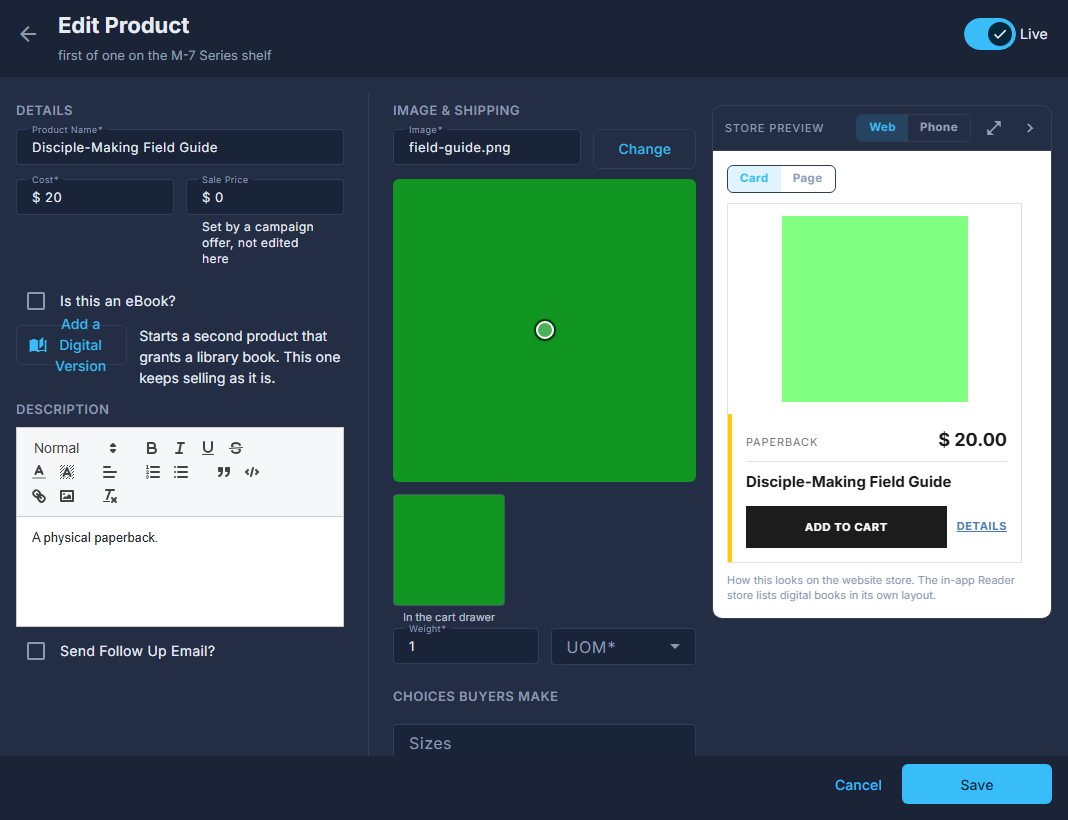
Open Back Office, then Commerce, then Products, and press New.

The line above the list: the search box, New, and the ☰ with Categories, Series, Order Receipt and Shipping. Fill in Product Name and Cost.
Cost is what a shopper pays. A cost of 0 sells the product as Free.
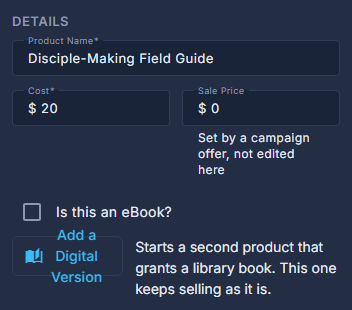
Details: the name, the cost, the sale price you cannot type, the eBook box and Add a Digital Version. Under Image & shipping, press Upload and choose the cover.
Required. Drag the focus point underneath it to choose which part survives the small square thumbnail in the cart.
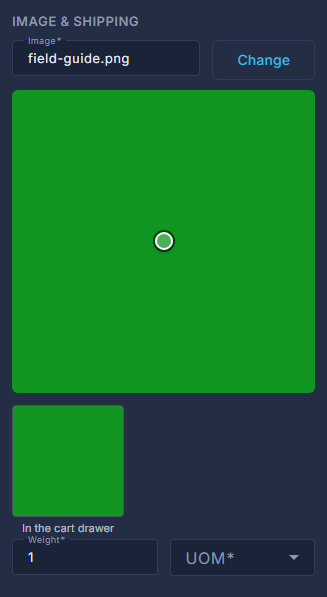
Image & shipping: the cover, the focus point under it, and the weight. Put in a Weight and a UOM.
This is what the carrier prices the shipping from, so anything that goes in a box needs its real weight. Both are required. A download's weight is set to 0 for you and cannot be changed.
Choose a Category, and a Series if it belongs on a shelf with others.
A product with no series lands in "Everything else" on the store, and under "Not on a shelf" in this list. Manage, beside each, opens the list of categories or series to add one.
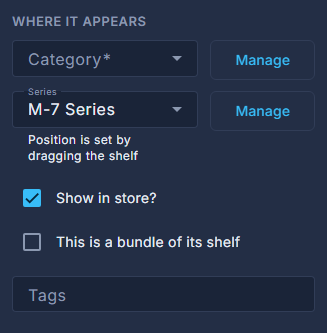
Where it appears: category, series, Show in store, the bundle box and tags. Write the Description.
This is the wording on the product page itself.
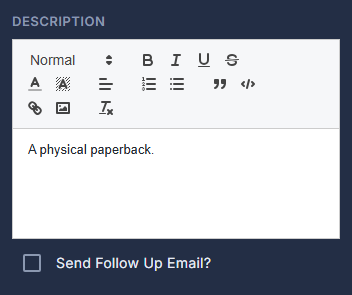
The description, with its formatting bar. Switch Live on, at the top right, and leave Show in store? ticked.
Live means the product exists at all. Show in store is what puts it on the shop shelf, so a product can be live and deliberately held back.

The top of the form: Back, where the product sits on its shelf, and the Live switch. Press Save.
The panel down the right is the card and the page as a shopper meets them, and it says in words when a product would not appear on the store at all.
Sale Price cannot be typed here. A sale price comes from running a campaign that carries an offer, which is why the box is shown but not editable.
A physical product saved with no weight ships free, quietly, for as long as it is on sale: nothing asks the carrier for a price when the order weighs nothing.