The Products screen is drawn the way the store is - shelf by shelf, in order - so what you drag here is what a shopper scrolls past.
The screens pictured here are an example ministry’s, so the names and figures in them are not yours. Everything they show works the same way in your own admin.
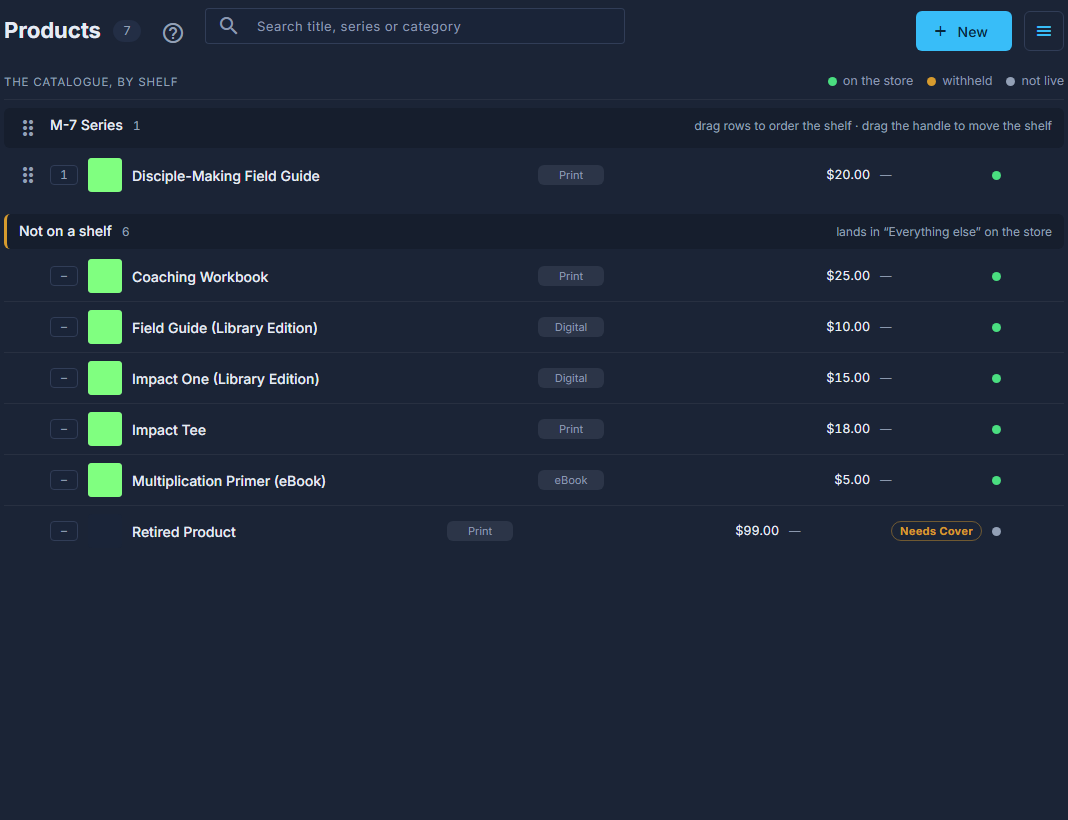
Open Back Office, then Commerce, then Products.

One shelf: its handle, its name, how many are on it, and its rows in store order. Drag a row up or down by its handle to order the products on its shelf.
Drag the handle beside a shelf name to move the whole shelf.
"Not on a shelf" always sits last and cannot be moved: those products have no series.
Press Save Order.
A bar appears at the bottom saying what moved. Nothing reaches the store until you press it, and Cancel throws the whole arrangement away.
To make a new shelf or a new category, open the ☰ at the top and choose Series or Categories.
Dragging is switched off while you are searching. An order arranged against a handful of search results is not the order of the shelf.
An amber tag on a row says what that product needs - Not Live, Withheld or Needs Cover - and pointing at it says why. A free product, or a download with no weight, is not a problem and gets none.