The store is drawn as shelves, and a shelf is a series. A category is the smaller label - Books, Merchandise - that every product must carry. Both are made from the Products screen.
The screens pictured here are an example ministry’s, so the names and figures in them are not yours. Everything they show works the same way in your own admin.
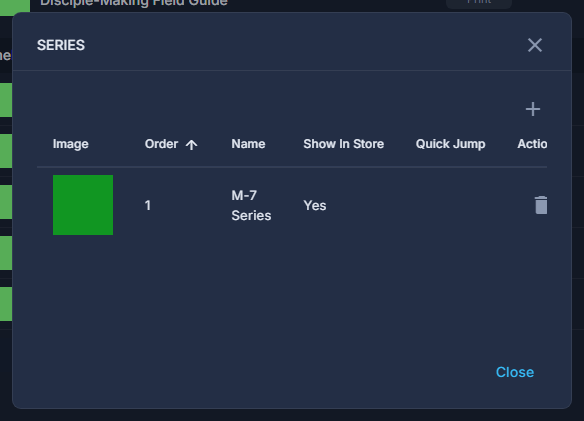
Open Back Office, then Commerce, then Products; open the ☰ at the top and choose Series.
Press + and fill in Order and Name.
Order is the shelf's place in the store, counted from 1. Show In Store? lets a shelf exist without being drawn. Upload Image gives the shelf a picture.
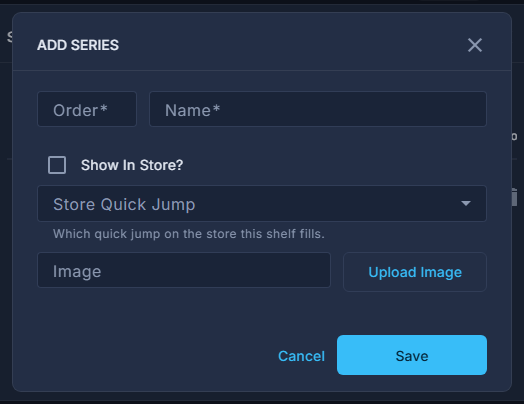
A new series: its order, its name, its picture. Press Save.
For a category, choose Categories from the same ☰, then +, and type the Category Name.
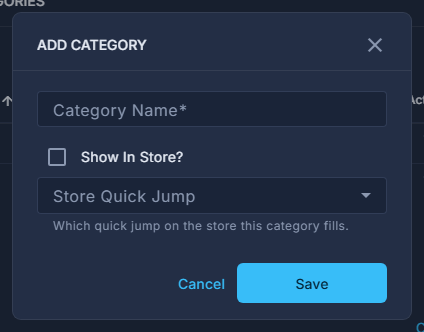
A new category: its name, and whether the store shows it. Put a product on the new shelf from its own form: Series, under Where it appears.
Then order the shelf by dragging its rows on the list.
Dragging shelves on the list rewrites their Order numbers, so the number in this dialog and the drag are the same setting two ways.
Delete a series and its products are not deleted: they drop to "Not on a shelf" here and "Everything else" on the store, until each is given a series again.