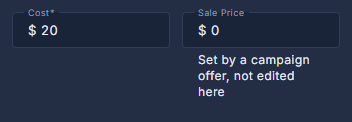
A product has one price, Cost. A lower price for a while is a sale, and a sale is a campaign offer - so the Sale Price box on the product is read-only and shows what an offer is doing.
The screens pictured here are an example ministry’s, so the names and figures in them are not yours. Everything they show works the same way in your own admin.
Open Back Office, then Commerce, then Products, and double-click the product.
Type the Cost and press Save.
A cost of 0 is a free product: the card says Free and the row is tagged Free.
To run a sale, open Back Office, then People, then Campaigns, and give a campaign an offer naming this product or its whole series.
While the offer is live, the row here shows the old price struck through, the new one beside it, and "On offer". Hover it to see whether the offer names the product or its series.

A row: its place on the shelf, the cover, the name, what kind of thing it is, the category, the price, the offer column and the dot. Amber tags say what a row still needs.
A sale price beats a coupon - the two never stack. Only a 100% coupon gets through, as a giveaway.
The store preview beside the form draws the Sale badge and the struck-through price as the shopper will see them.