A campaign is DRAFT until you start it, LIVE while it runs, and ENDED after. Its popup, its discount and its coupon follow that status, so starting and stopping the campaign is what starts and stops them.
The screens pictured here are an example ministry’s, so the names and figures in them are not yours. Everything they show works the same way in your own admin.

Open Back Office, then People, then Campaigns, and double-click the campaign.
The list opens with live campaigns first, then scheduled, then drafts, then ended ones, the newest start date first in each. Press a column heading to sort by it instead.
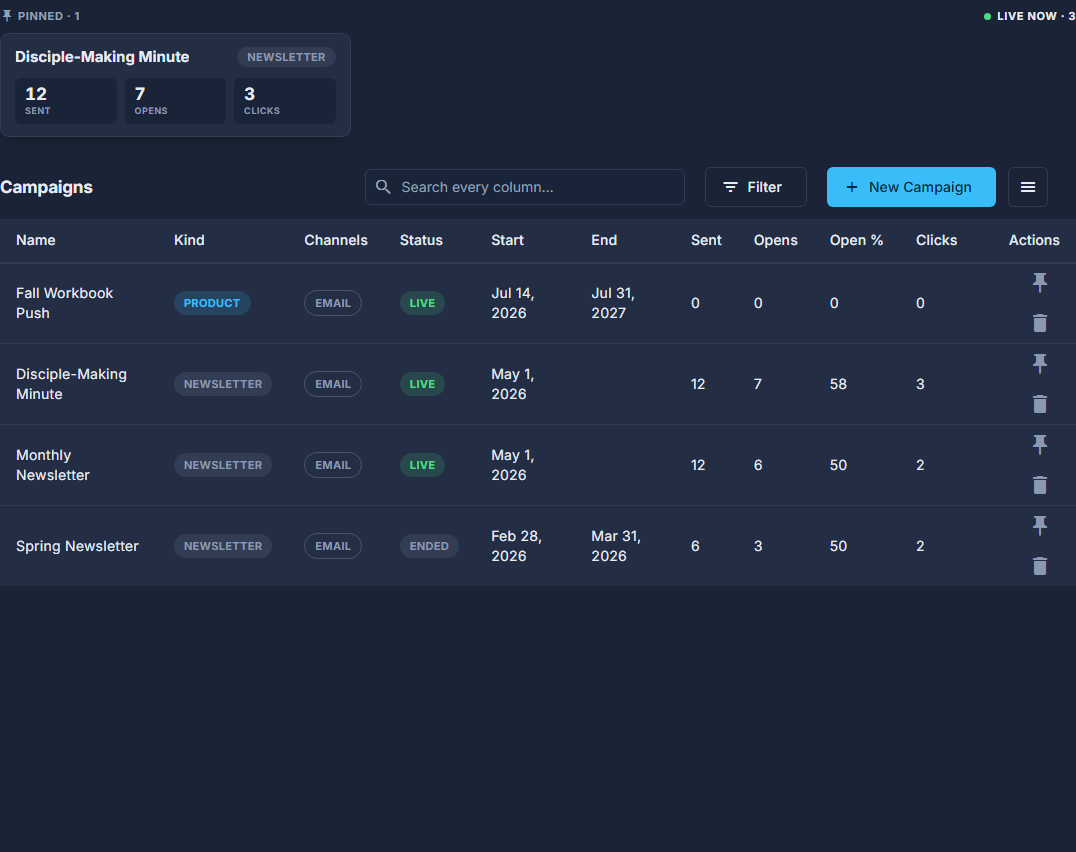
Campaigns: the pinned cards and the Live now count at the top, and every campaign below. Press Activate to start it.
With a start date in the future it becomes SCHEDULED and goes live on its own. If another live campaign already discounts the same thing, it says so and asks.
Open the ☰ at the top and choose End Campaign to stop it.
It asks first. Ending stops the web popup, the discount and the coupon together.
Press Reopen on an ended campaign to run it again.
If its end date has passed, it is cleared and the campaign runs with no end date.
Open the ☰ for Edit Campaign, Add Popup (Edit Popup once it has one) or Social Posts - the other channels.
The popup is what site visitors see - "Build the campaign's popup" is the article for it; social posts are written here, posted by hand, then marked as posted.
Choose Delete Campaign, in red under the ☰, only for a campaign that should never have existed.
It deletes the campaign, every email on it and its popup. It asks first; it cannot be undone.
A campaign you open every day can be pinned: the pin at the end of its row on the list puts it in the Pinned cards at the top of the screen. Live now, beside them, counts every campaign running right now, pinned or not.
The tiles under the buttons are the campaign's numbers: sent, delivered, opened, clicked, and what it led to. Opens by mail scanners are kept out.