The footer prints your address, phone and email on every page, and shows a social icon for each account with an address filled in. They are kept once, here, so the site and the admin cannot disagree about them.
The screens pictured here are an example ministry’s, so the names and figures in them are not yours. Everything they show works the same way in your own admin.
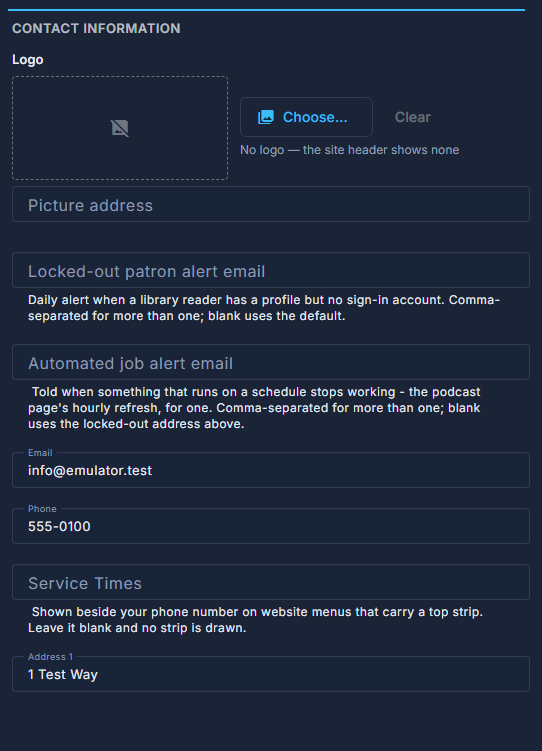
Open Site, then Settings. The Info tab is the first one.
Choose a logo.
Choose opens the site's file browser; Clear leaves the header with no logo at all. The line under it says which the site is doing.
Fill in Email, Phone and the address.
The address is also where parcels are shipped from, so a shipping quote is only as good as what is here. Every marketing email carries it too - the law requires a postal address - so a campaign will not send until it has a street, a city and a state or postcode.
Fill in the social accounts you have, in the right-hand column.
Twitter, Facebook, LinkedIn, Youtube, Instagram: the footer shows an icon only for an address that is filled in. Podcast playlist (YouTube) builds the podcast page - leave it blank and the page and its menu link disappear. Social Publishing Identity is the page name and handles shown in campaign previews - names only, never a key or a token.
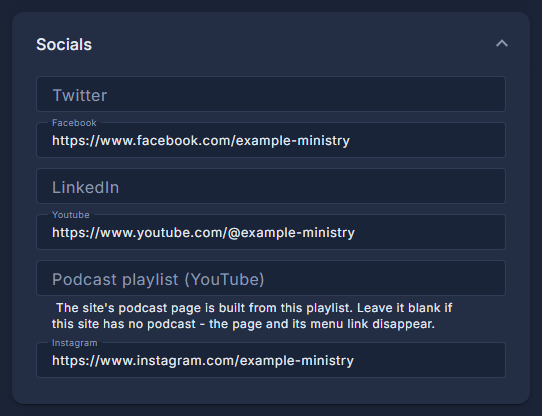
The right-hand column: the newsletter name, the social accounts, the podcast playlist and the publishing identity. Press Save.
One Save for the whole tab, at the foot of it.
The two alert addresses at the top are for the office, not the site: a daily note about a library reader with no sign-in, and a note when something that runs on a schedule stops. Blank uses the default.
This page is world-readable, because the site reads it. Never put a password, an API key or a token in any field here.