Your site does not store colours page by page. It keeps one set of choices, and every page follows them - so changing a colour here changes it everywhere, and nothing goes out of step.
The screens pictured here are an example ministry’s, so the names and figures in them are not yours. Everything they show works the same way in your own admin.
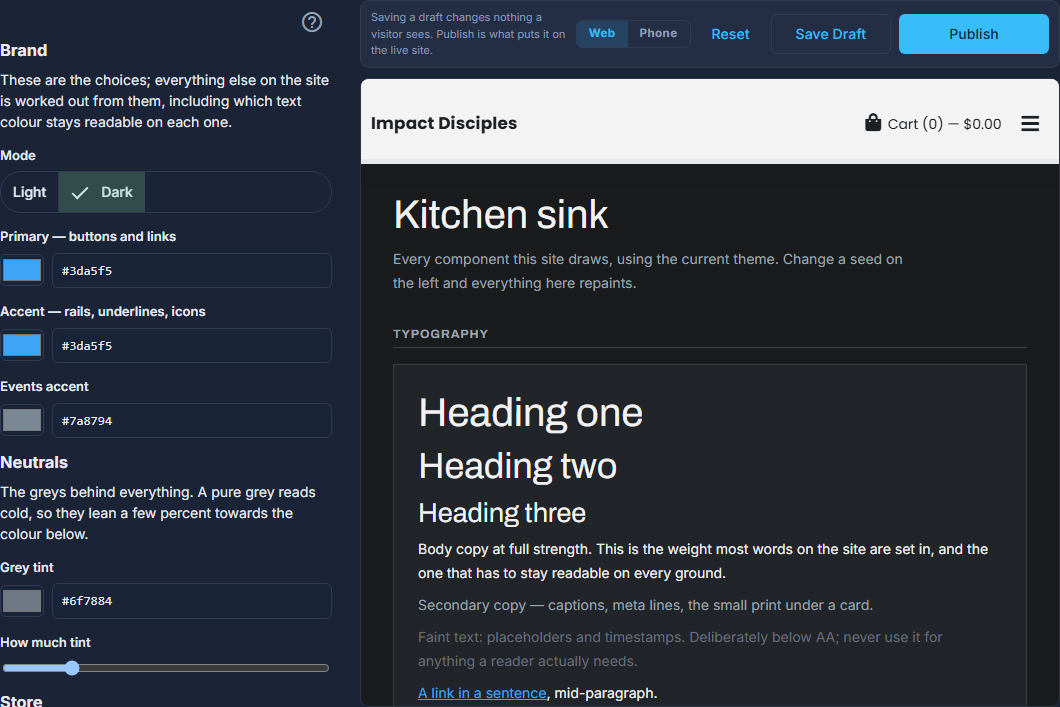
Open Site, then Settings, then the Branding tab.
Change what you like and watch the panel beside it.
Mode, the three brand colours, the tint of the greys, the sale price colour, the font pairing, corners, density, heading size, buttons and the line under a heading. The panel is your real website, not a picture of it - and Web | Phone shows it at either width. A site started from a ready-made look keeps that look's typefaces: they are first in the list as Your current typefaces, and the same pairings Set up offers follow.
Check Readability.
It measures every text pair on the site against each other and lists any below the AA standard. It reports rather than blocks - the decision stays yours.
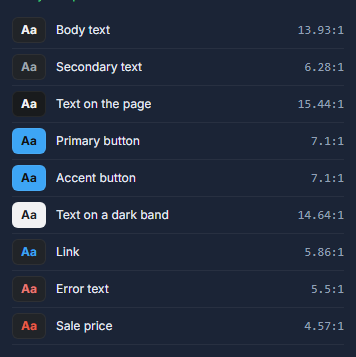
Readability: each text pair, its swatch and its contrast ratio. Press Save Draft while you are deciding, and Publish when you are sure.
A draft changes nothing a visitor sees. Publish is what makes it live, all at once, across every page. Reset puts the platform defaults back in the form.

Above the preview: Reset, Save Draft, Publish, and the Web | Phone switch.
Every look you have published is listed under Previously published. Load puts one back in the form, so going back is Load and then Publish.
Publishing changes every page of the site at the same moment. There is no page-by-page version of this.
Pinned adjustments are values fixed over what your choices work out. They were made for one look; after changing your site's look, Drop all lets the new look draw as intended. Nothing changes until you Save or Publish.