Set up gives you a whole site in one sitting: you pick a look, adjust it, choose which pages to start with, and it builds them for you. Nothing a visitor can see changes until the last button on the last step, so you can work through the pages first and let people see them when you are ready.
The screens pictured here are an example ministry’s, so the names and figures in them are not yours. Everything they show works the same way in your own admin.
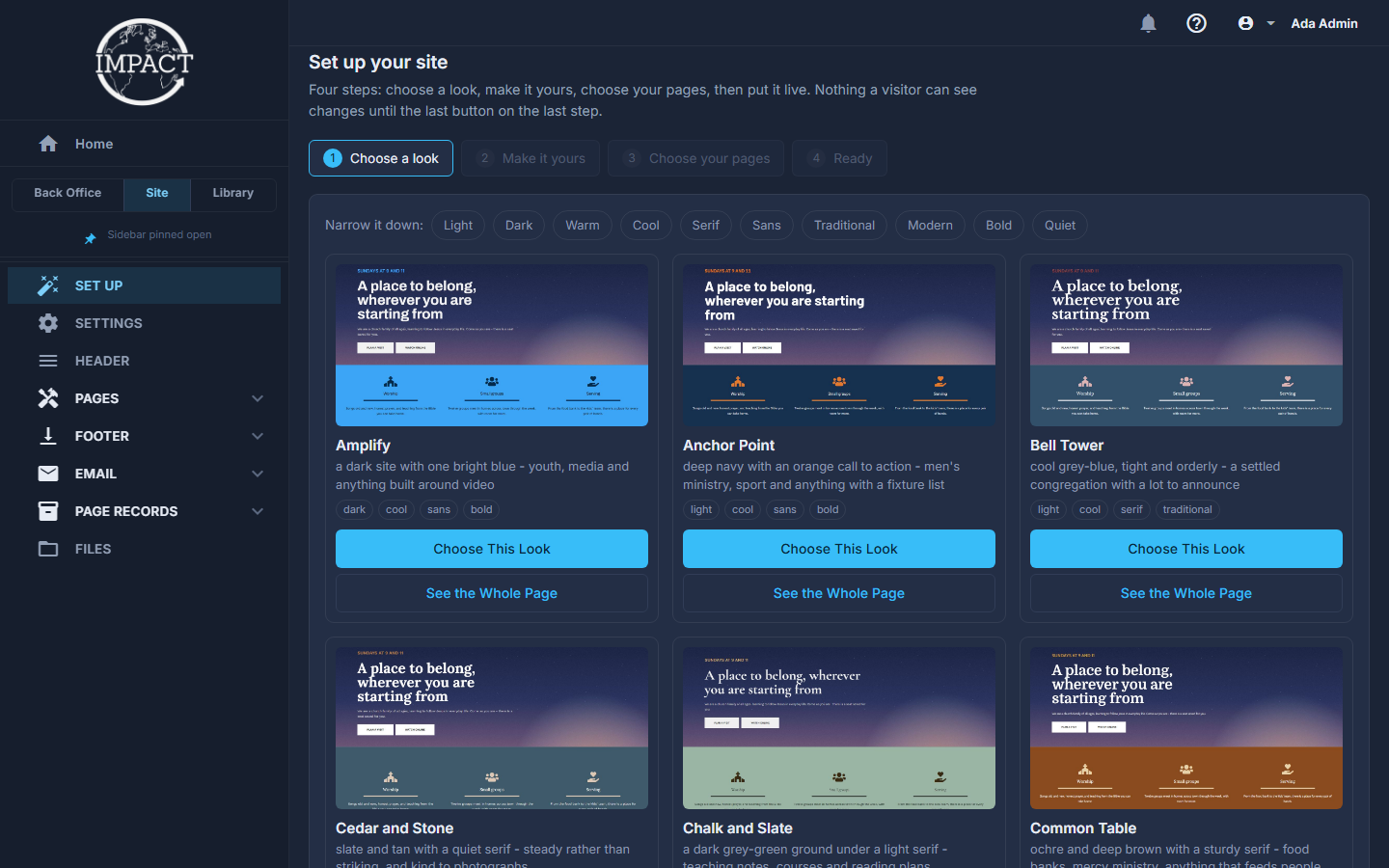
Open Site, then Set Up.
Narrow the looks down, then press Choose This Look on the one you want.
The chips along the top - light, dark, serif, quiet and the rest - each take the gallery down to the looks that have that quality. Choosing a look takes you straight to step 2 and remembers the choice, so you can leave and come back.

Narrow it down: press a chip to keep only the looks with that quality; Clear takes them all off. Look at a card, or press See the Whole Page.
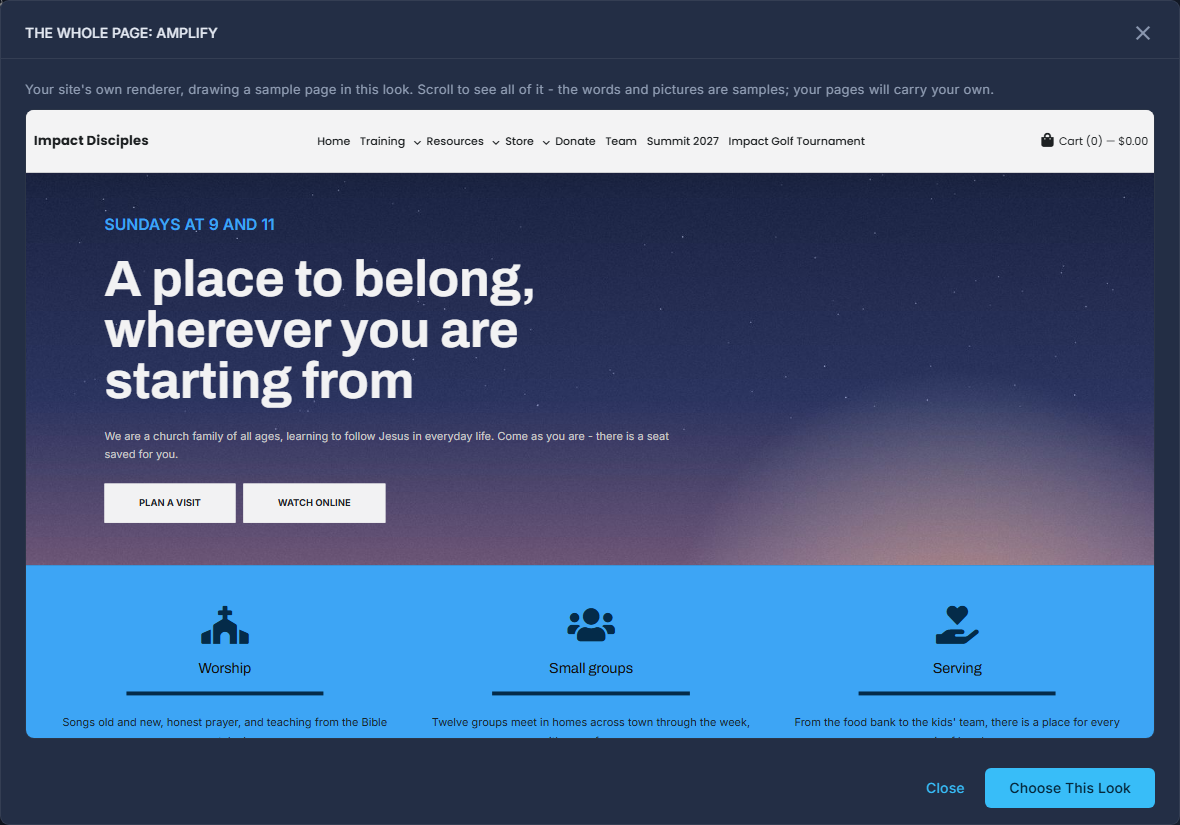
Each card is a real picture: the same sample page, drawn by your site in that look - its colours, typefaces, corners and buttons. See the Whole Page opens that page large so you can scroll all of it, and Choose This Look there chooses it. The words and pictures are samples; your pages carry your own.
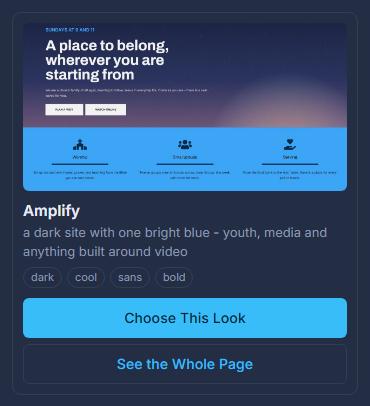
A look: the sample page in that look, its name, who it suits, and its two buttons. On step 2, Make it yours.
Typefaces, ground, colours, how tinted the greys are, corners, air, buttons and the line under a heading - the same choices the Branding screen edits. The page beside them is your site drawing its sample page, and it changes as you do. A note appears if any pair of colours is harder to read than the standard asks for; it measures, it does not refuse. Back to the look as it came undoes all of it.
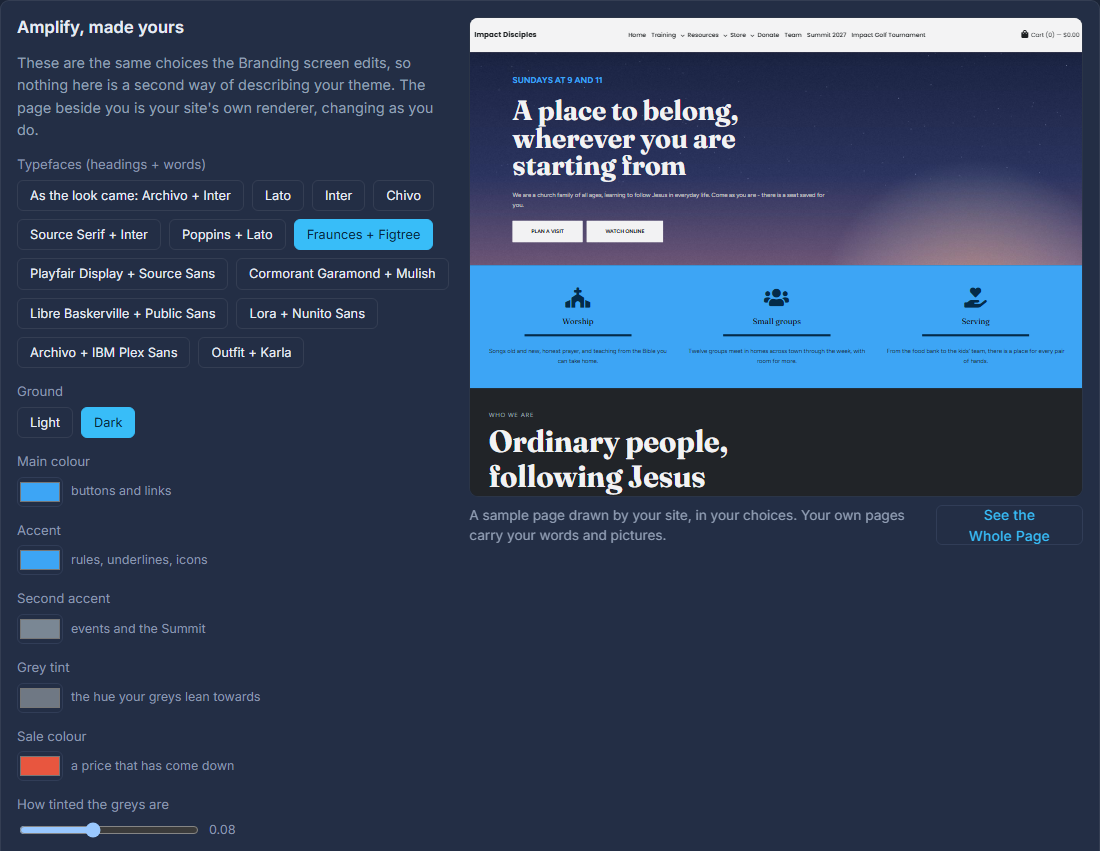
Step 2: the choices on the left, the sample page on the right in those choices. Pick the typefaces - the first choice on step 2.
The first pair is the look's own - As the look came. The rest are pairings that go together: a typeface for headings and one for words. Press one and the page beside it changes.
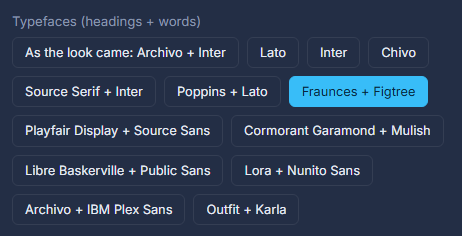
Typefaces: the look's own pair first, then the other pairings. On step 3, Choose your pages: tick the ones you want.
Home, About Us, Contact, Give, Privacy Policy and Terms & Conditions are offered. A page you already have is greyed out and left alone. Your Store, Events, Team and newsletter pages are not here - they are built from your records, and Pages already lists them.
Fill in how people reach you, if you like, and press Save These.
Street, town, phone and email - what the footer prints on every page. Optional, and saved on its own button.
Press Build It.
The pages are made off the site, and every menu item and footer link that comes with them is made switched off. Your look is saved as a theme DRAFT, not published.
Write your pages in Pages, then come back and press Put My Site Live.
One button switches on every page it made together with their menu items and footer links - a link you can see pointing at a page that is not there is a Page Not Found.
You can leave half-way through. When you return, step 1 offers to pick it up where you left off, or to start again from the gallery.
See the Whole Page is there on step 2 as well, showing the look as you have changed it.
Put My Site Live puts your chosen look live as well - but only for a site that has no published look yet. A ministry whose site already has a look is never restyled by it; change that one on Site > Settings > Branding.
Set up never changes a page you already have. If you want to start a page again, delete it first.
If your theme has pinned adjustments, choosing a new look asks whether to drop them. OK drops them (recommended); Cancel keeps them.
A brand-new ministry's Administrator is brought here the first time they sign in, while the site has no pages of its own yet - once per visit, never for staff. After that, Home shows a "Your first month" list (pages on the site, Give links, PayPal, a staff member, a first newsletter) until it is all done or you press Hide.