The Pages list under Site, on the left, is your site: every page is a row, and clicking one opens it. Above the designer sits the page frame, which is where a page is published, and taken off the site again.
The screens pictured here are an example ministry’s, so the names and figures in them are not yours. Everything they show works the same way in your own admin.

Open Site and press New Page at the foot of the Pages list.
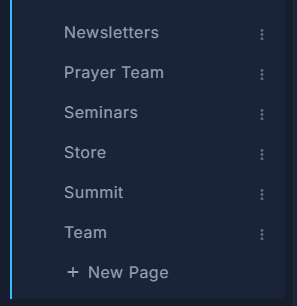
The foot of the Pages list: a page per row, and New Page last. Give it a title and a web address, say what ground it mostly sits on, and press Create Page.
The address is filled in from the title - "Men's Retreat" makes /mens-retreat. It can be changed later with Change Web Address, and the old one then forwards, but links already shared read best if it is right from the start. Mostly is the background most of the page sits on; any section can differ.
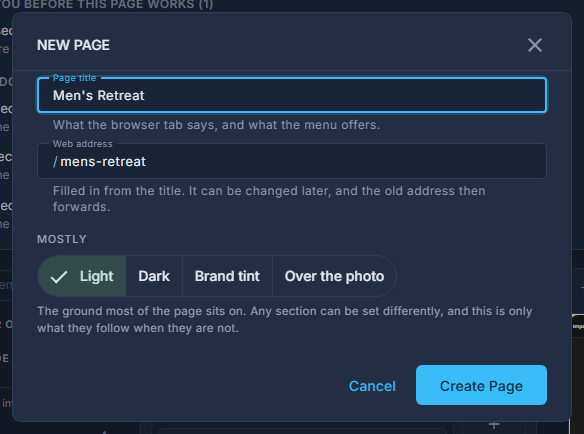
New page: the title, the address it makes, and the ground the page mostly sits on. Build the page in the designer.
An empty page offers Start With a Section, or a whole page to start from - About us, an event, Give, Our team, Contact, a series and more - laid out with words that say what goes where, and buttons waiting for somewhere to go. Or copy another page. Sections down the page, elements inside them. Save in the designer's bar keeps your work without putting it on the site - it says Unsaved changes until you do. Until the page is published, the site keeps showing what was there before.
Press Publish in the page frame.
One pop-up says what is going out and lists anything worth a look first - a button that goes nowhere, a picture with no description, a list still waiting for its series. Fix opens the thing to fix; nothing there stops you publishing. On a new page it also offers to turn the page on and to add it to the Header menu, both ticked. Press Publish, and unsaved work is saved, the changes go live, the page is switched on and added to the menu, in that order.
To take a page off the site again, turn On the site off.
The switch can also put a page on by hand. It refuses a page with nothing on it to draw.

On the site: the switch that decides whether a visitor can reach the page at all.
If a step fails, Publish stops there and says what did and did not happen - for example, that the changes are on the site but the page could not be added to the menu.
Publish adds a page to the end of the Header menu. To put it inside a dropdown or somewhere else in the order, arrange it under Site, Header.