A page is not in the menu just because it exists - though Publish offers to add a new page to the end of it. The menu is its own list, so you decide what belongs in it and in what order - and the real header of your site sits across the top of the screen, so you see the result as you go.
The screens pictured here are an example ministry’s, so the names and figures in them are not yours. Everything they show works the same way in your own admin.
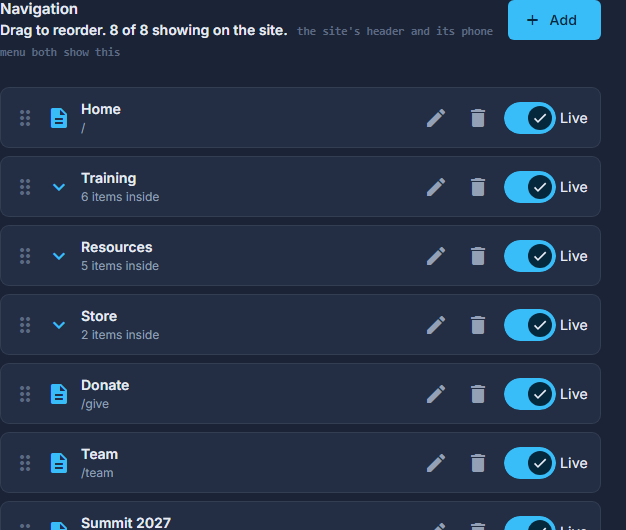
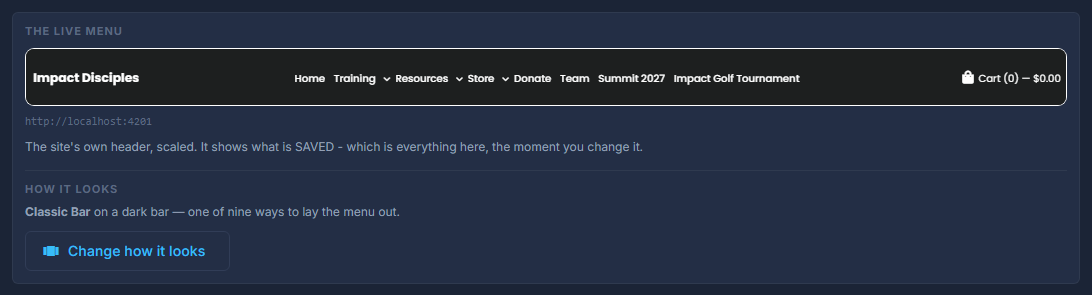
Open Site, then Header.
Press Add and pick what goes in.
The built-in pages are grouped; Pages You Made lists the ones made in Pages, with a draft marked. A link is any address, on your site or elsewhere. A dropdown is a heading that opens onto items of its own.
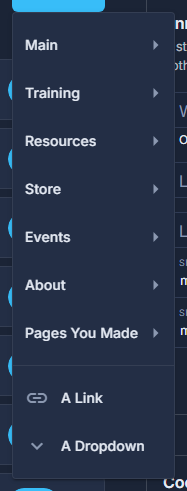
Add: the built-in pages by group, Pages You Made, A Link, A Dropdown. Drag the rows into the order you want.
Order, Live and delete save the moment you change them.
Press Edit on an item to change its wording, and press Save - or Done to go back.
What the menu says is the only thing that waits for a Save. Draw attention to it styles the item to stand out; Show it in the menu hides it without losing it. A dropdown lists what is inside it, with its own Add.
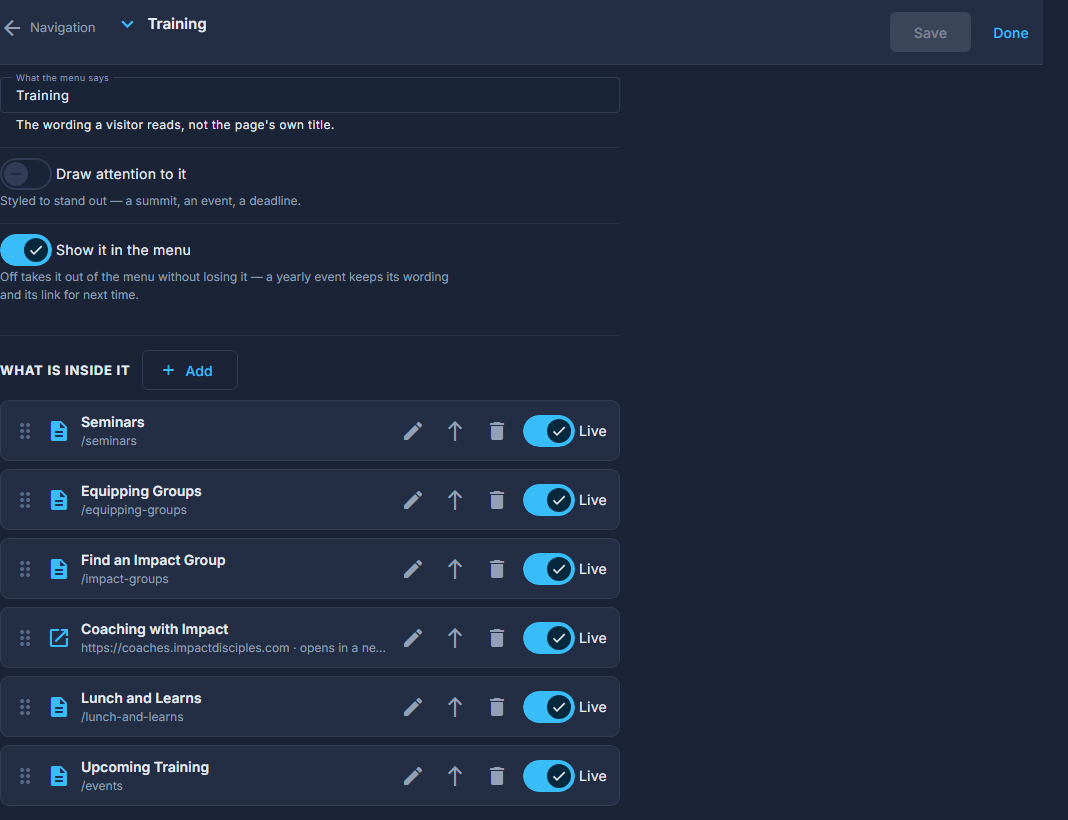
One item open: its wording, its switches, and - for a dropdown - what is inside it. Switch the item Live.
A menu item that is on while its page is off sends people to a Page Not Found. Nothing here stops you - a page still off the site is marked draft under Add - so switch the page on first.
The trash can deletes an item for good, after asking. To take something out of the menu for a season - a yearly event - switch it off instead, and its wording and link are kept for next time.
A dropdown with nothing in it is left out of the site altogether. Add something to it or delete it.