The footer is on every page, so it is edited once, here, as three cards: who you are, where the links go, and how people keep in touch. The real page is framed down the right, and the footer is at the bottom of it.
The screens pictured here are an example ministry’s, so the names and figures in them are not yours. Everything they show works the same way in your own admin.
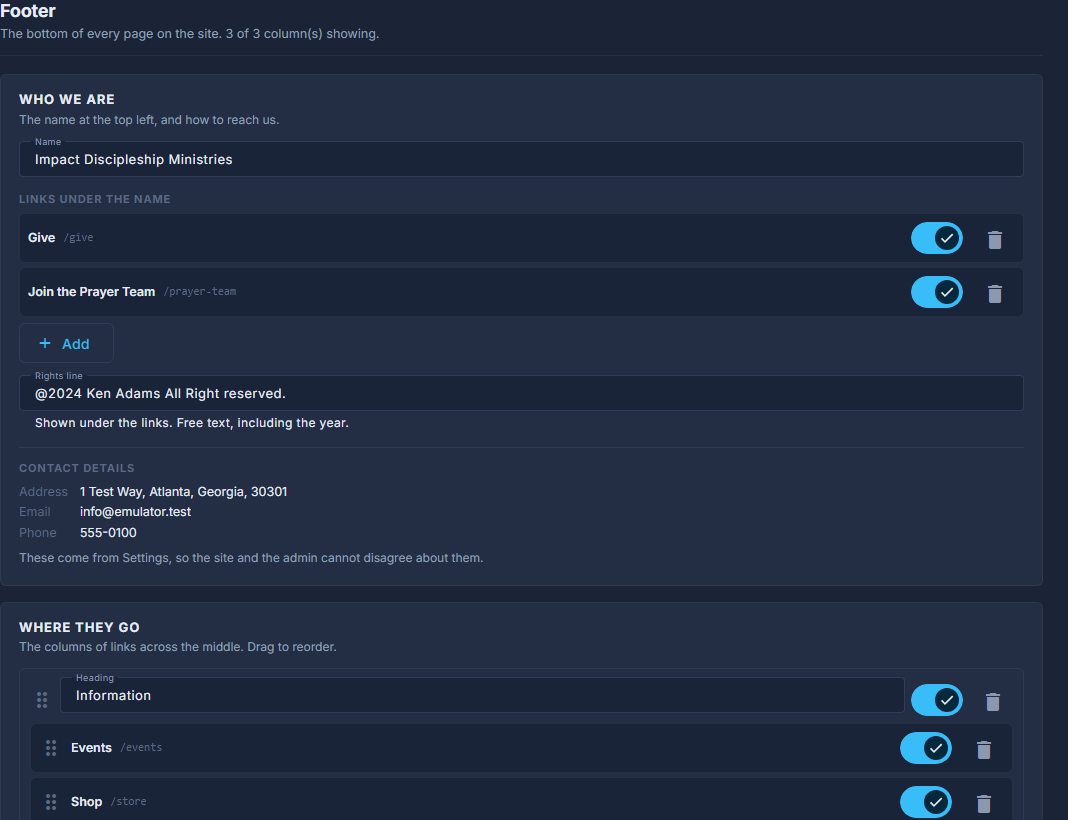
Open Site, then Footer.
Who we are: the name at the top left, the links under it, and the rights line.
The address, email and phone shown here are read-only - they come from Settings, so the site and the admin cannot disagree about them.
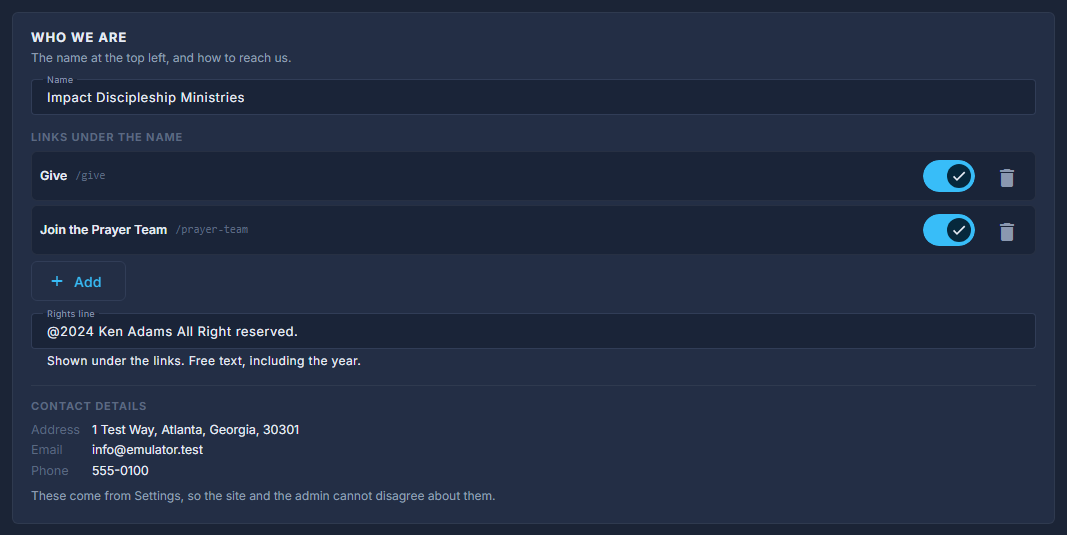
Who we are: Name, Links under the name, Rights line, and the contact details from Settings. Where they go: the columns of links across the middle.
Each column has a heading, a switch, a trash can and its own Add - the built-in pages by group, or A Link. Drag columns and links to reorder. Add a Column makes another. A column with nothing in it is left off the site.
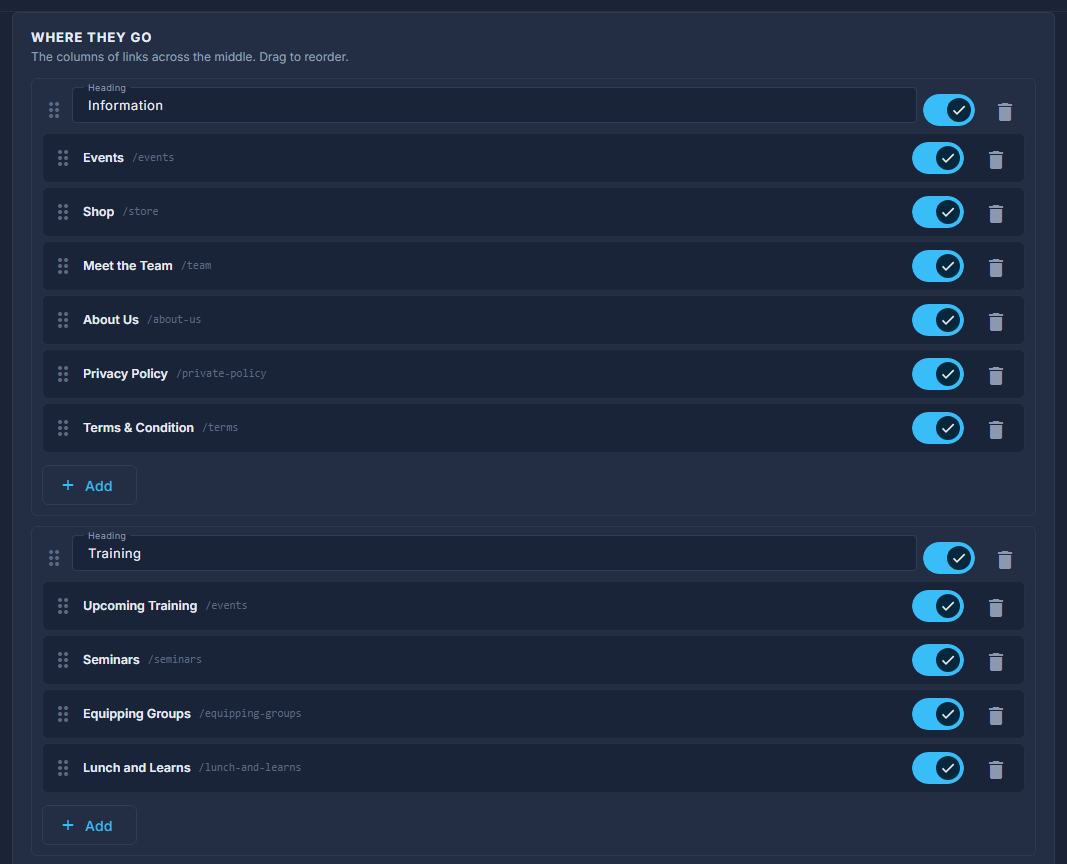
Where they go: each column with its heading, its links and Add; Add a Column below. Keep in touch: the sign-up box, the bar along the very bottom, and the social icons.
The sign-up form itself is fixed; only its heading and wording change. The socials are read-only here - an icon appears for each account filled in on Settings. Background image is the picture behind the top half of the footer.
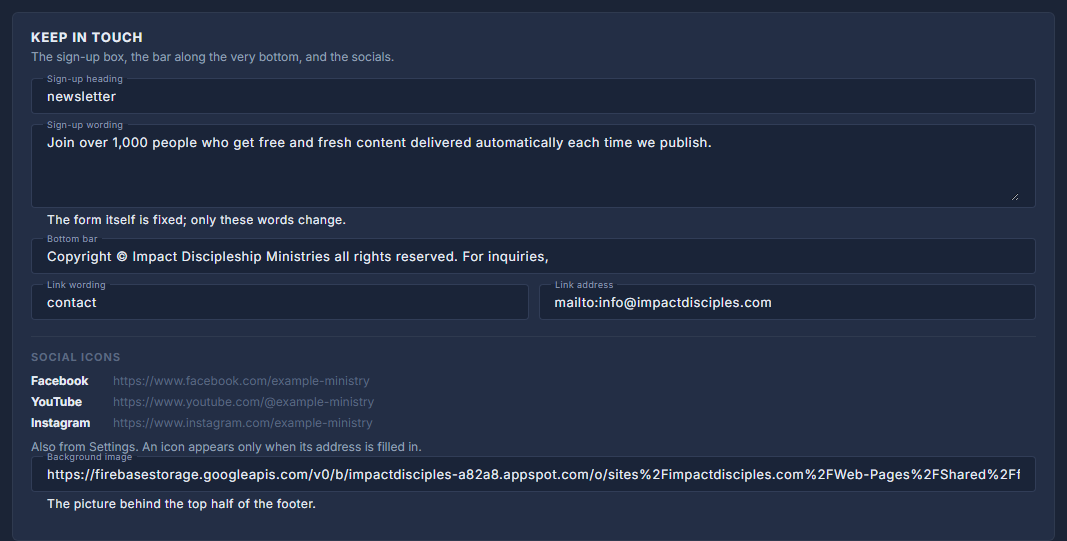
Keep in touch: Sign-up heading and wording, Bottom bar and its link, the social icons, Background image.
There is no Save. Order, switches, adding and removing write at once; wording writes when you leave the field. The preview reloads after every change.
A link to a page that is no longer on the site is tagged broken. Remove it with the trash can - a visitor who follows it gets Page Not Found.