The docking bar is fixed to the bottom of the window on every page of the site - a message and a button or two that follow the visitor down the page. It is hidden by itself on the cart and checkout pages, and on whichever page one of its buttons points at.
The screens pictured here are an example ministry’s, so the names and figures in them are not yours. Everything they show works the same way in your own admin.

Open Site, then Docking Bar.
Fill in the message.
Label is the accent word above the message, such as "New". Message is the main line. Note is dimmer text after it. Only the message is required.
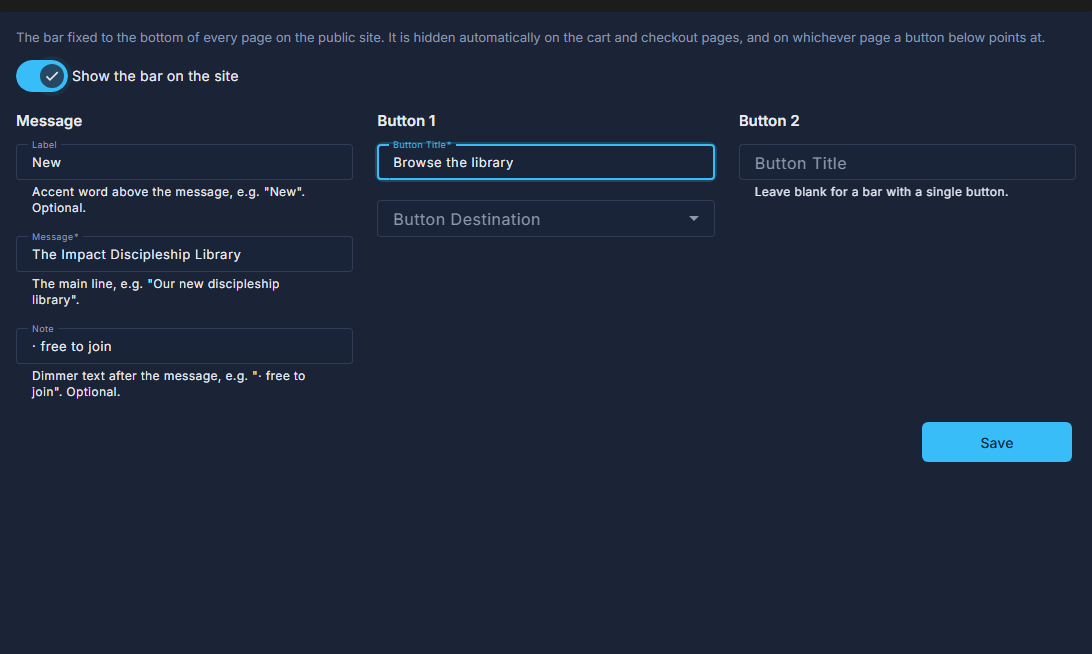
Show the bar on the site, then Message, Button 1 and Button 2 side by side, and Save. Give Button 1 a title and a destination.
Pick a page of the site from the list, or choose the external option and paste an address. Button 2 is optional - leave its title blank for a bar with a single button.
Switch Show the bar on the site on, and press Save.
Off, nothing shows on the site and the preview says so.