Only the two things people come to do - throw changes away or publish them - sit in the open, beside the On the site switch. Everything else about a page is one press further away, so the frame does not shout ten things at once.
The screens pictured here are an example ministry’s, so the names and figures in them are not yours. Everything they show works the same way in your own admin.
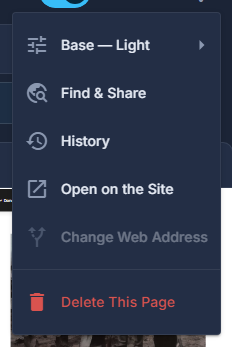
Open the page, then press the button at the right-hand end of the page frame.
Base: pick the ground most of the page sits on.
Same as the page is what a section follows when it is not set to a ground of its own. Changing it here changes every section that follows it.

Base: the grounds a page can sit on. The tick is the one it has now. Schedule Going Live: pick a date and time, and press Save.
Offered only for a page that is not on the site. It puts the page on the site at that moment without anybody at a desk; nothing here ever takes a page back off. Stop Waiting cancels a date already set. What goes live is the page as it is on the site - changes still waiting stay waiting.
Open on the Site: see the page as a visitor does, in a new tab.
It opens the live address, so a page that is switched off shows Page Not Found.
Change Web Address: move the page to a new address, with the old one forwarding.
For an Admin, on pages you made. Old Addresses appears below it once a page has moved. See "Change a page's web address".
Delete This Page: it asks you to confirm, then the page and its history are gone.
Not offered on an application page - Store, Events, Team and the like - whose header is the only part that is yours to edit.
Deleting a page does not take it out of the menu or the footer. A link left pointing at it is marked broken on the HEADER and FOOTER screens; delete the link there too.
A form belongs to the page it is on, so deleting the page takes its form with it - nothing checks first. The submissions already received stay under Form Submissions.