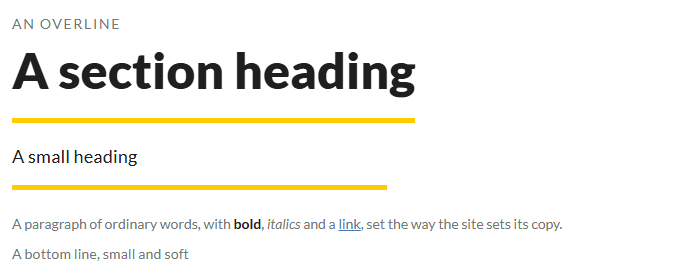
There is one Text element, and how it is set is a choice inside it - a page title, a section heading, a small heading, a big figure, an overline, a bottom line, or a paragraph. That keeps the rail short and the site consistent: a heading is a heading everywhere because the same style draws it.
The screens pictured here are an example ministry’s, so the names and figures in them are not yours. Everything they show works the same way in your own admin.


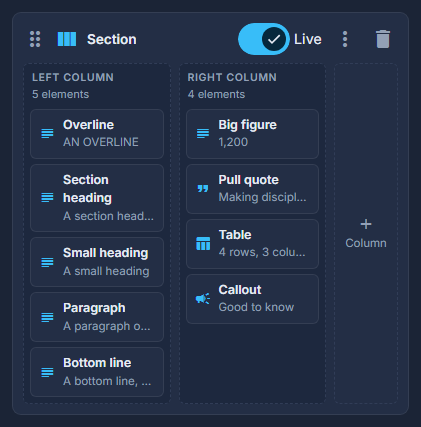
Text: drag it in, then choose its style.
Page title (once per page), Section heading (with the brand rule under it), Small heading, Big figure, Overline (small spaced capitals over a heading), Bottom line (small and soft, under a button), or Paragraph - ordinary words with bold, links and bullets. A heading can be kept for screen readers and taken off the screen. In the structure its chip is named by the style - Page title, Paragraph - with its words on the line under it.
Rewrite: press it beside a Text element's words to have them reworded.
This needs the AI writing add-on, which is switched on per site; without it there is no Rewrite button. Highlight some words first to rewrite only those. Choose how - more professional, warmer, shorter, clearer, fixed spelling, or your own instruction - then compare the two and press Replace (or Insert Below in a paragraph). A heading stays one line. The facts are kept as they were; Undo takes the rewrite back in one step, and nothing is saved until you Save.
Pull quote: type the quote and who said it.
For quotes that belong to Testimonials, use a List with the Quote carousel or Quote cards look.
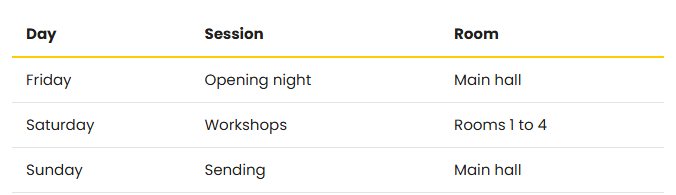
Table: type the cells, a row at a time.
The first row is the heading row unless you say it is not. Add and remove rows and columns in the pop-up.
Callout: choose the tone, give it a title if you like, and write the words.
Information, good news, take note, or plain - the tone sets the colour and the icon.
An Overline attaches to the heading under it and a Bottom line to what is above it: the gap closes on that side, so the line reads as part of its neighbour.