An email is sections of rows of blocks, and you build it by dragging. The panel on the right is either the things you can add or the settings of the thing you have selected - never both at once.
The screens pictured here are an example ministry’s, so the names and figures in them are not yours. Everything they show works the same way in your own admin.
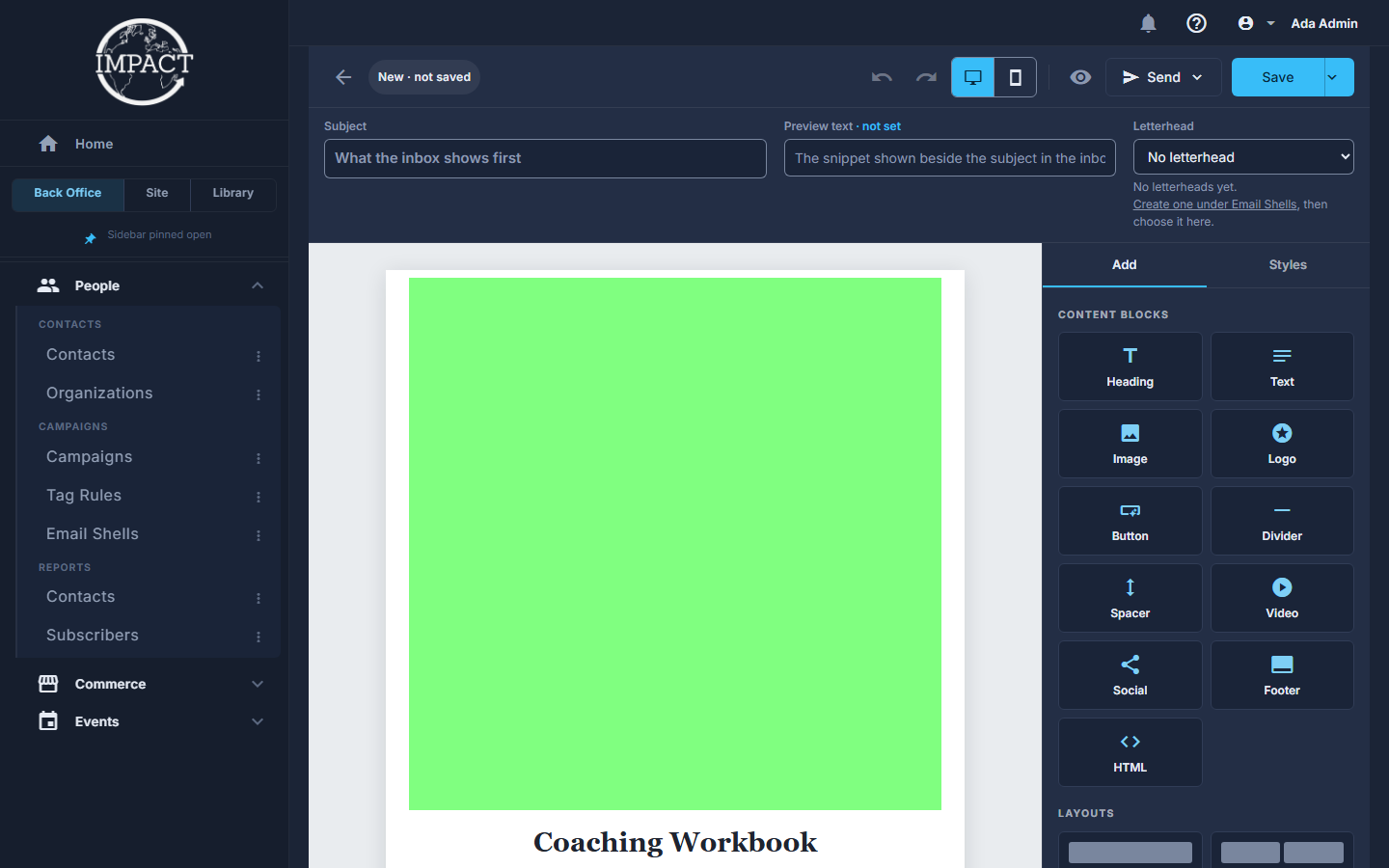
Open the campaign and press New Email, or press an email on it that is still a draft.
A sent email cannot be opened here. Sent Emails on the Campaigns screen shows it instead.
Fill in the subject and the preview text across the top.
The subject is what people read in their inbox, and what names this email everywhere else - on the campaign, in the delete box, on the preview. The preview text is the snippet an inbox shows beside the subject. An email has no separate name and no third tab; a newsletter issue gets a "Website post" tab on the right, holding its title, its website date and "Show on the website".

Across the top of the designer: the subject line, and the preview text beside it. Drag a block from Add on the right into a column.
CONTENT BLOCKS are the pieces; LAYOUTS are rows of one to four columns; HEADERS & FOOTERS are ready-made bands to drop in at the top or bottom.
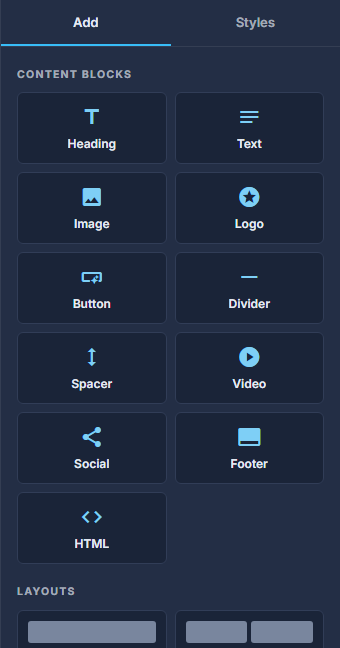
The Add panel: blocks, layouts, headers and footers. Press a block to change it.
The panel switches to that block's settings, its style, and Hide on mobile / Hide on desktop. Press the x at the top of the panel to go back to Add.
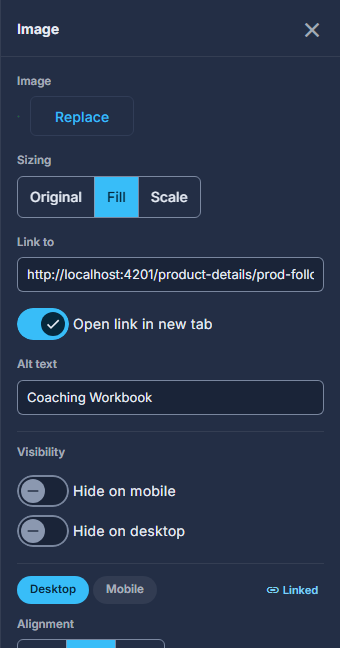
The panel once a block is selected: its settings. Double-click a block of words, or a block of your own HTML, to write in a big editor.
It opens over the email, headed EDIT TEXT or EDIT HTML, with room to write instead of the narrow panel. Words get the same toolbar you get in place, with Rewrite and Merge Tag on the end of it; HTML gets a tall monospace box the width of the dialog. Save puts it back on the email, Cancel changes nothing, and neither one saves the email itself - that is still Save at the top.
Use the tools on a section's label to rename, move, duplicate or delete it.
The red trash can deletes the whole section and everything in it. Each toolbar says which scope its trash can belongs to. A section holding more than one row gives each row its own small toolbar for moving, duplicating and deleting that row alone; a section with a single row shows one toolbar, not two, because there is nothing to tell apart.
Switch between the desktop and phone views, and press the eye to preview it as an email.
Styles, beside Add, sets the colours and fonts for the whole email.
Press Save.
Ctrl+Z undoes; the chip beside the title says whether it is saved.
Leaving with unsaved changes asks first. Discarding really does throw the changes away.
The arrow beside Save starts from a template, or saves this design as one for next time.
Your own HTML is used as it is, with one exception: scripts and event handlers are stripped when you save it. Layout markup is kept. Email clients support far less CSS than a browser, so keep it to tables and inline styles.