The menu has three tabs: Back Office for the day-to-day work, Site for your public website and Library for your books. Under each, only one heading is open at a time, so the menu stays short.
The screens pictured here are an example ministry’s, so the names and figures in them are not yours. Everything they show works the same way in your own admin.
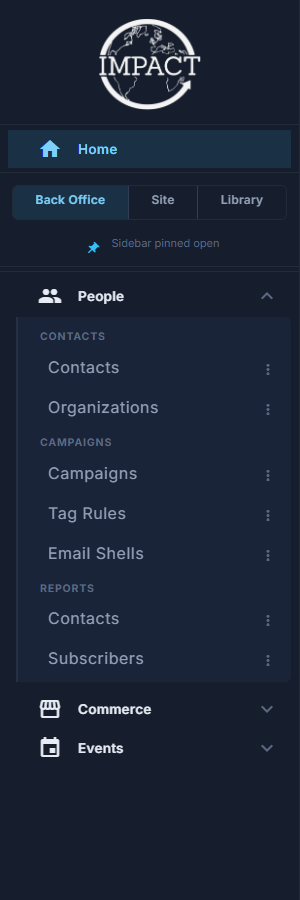
Press a tab at the top of the menu: Back Office, Site or Library.
You see only the tabs you have screens on. Home, above the tabs, goes straight to Home.
Press a heading to open it - on Back Office, People, Commerce or Events.
Opening one closes the one that was open. Press an open heading to fold it shut.
Press the screen you want.
The menu follows you: open a screen from anywhere and its tab and heading open with it.
To keep a screen you use every day one click away, press the three dots beside it and choose Pin to Top.
Your pins sit under Home, above the tabs, in the order you pinned them. The pin beside a pinned screen unpins it.
Each area's reports are under its own heading: People's under People, the store's under Commerce, and so on.
Prefer a narrow row of icons down the left edge? Press your name at the top right and choose Icon Menu; choose Tab Menu there to come back. The choice follows you to any computer you sign in on.