Files is the same file browser you see whenever you choose a picture for a page, product or email, on a page of its own. Use it to tidy up: add new files, put them in folders, rename them, or remove ones you no longer need. A page that shows a picture remembers where the picture was when you chose it, so renaming, moving or deleting a file here leaves that page showing a blank where the picture was. Choose the picture again on the page to put it back.
The screens pictured here are an example ministry’s, so the names and figures in them are not yours. Everything they show works the same way in your own admin.
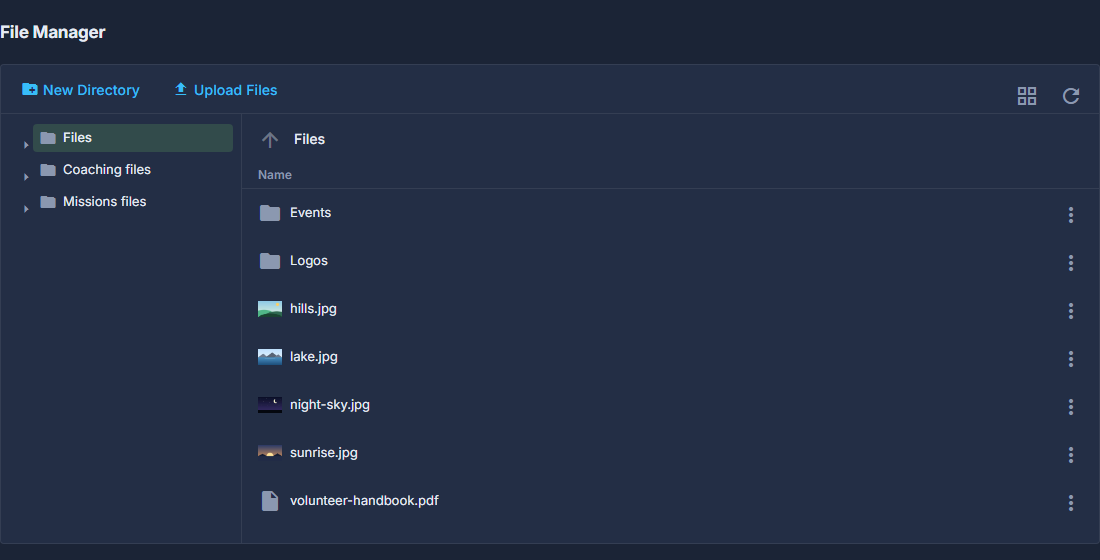
Open Site, then Files.
Only an Administrator sees it.
Press Upload Files, or drag files onto the list.
You are asked how large a picture should be on the site before anything is uploaded; cancel there and nothing is added. A file whose name is already taken is saved under a new name, and the message tells you which.
Press New Directory to make a folder, and double-click a folder to open it.
The list on the left jumps to any folder, and the arrow above the files goes up one.
Click a file to pick it up.
Download, Move To, Copy To, Rename and Delete appear along the top. Hold Ctrl while clicking to pick several: you can download or delete them together, but move, copy and rename take one at a time. The three dots beside a file, or a right-click, open the same choices for that file.
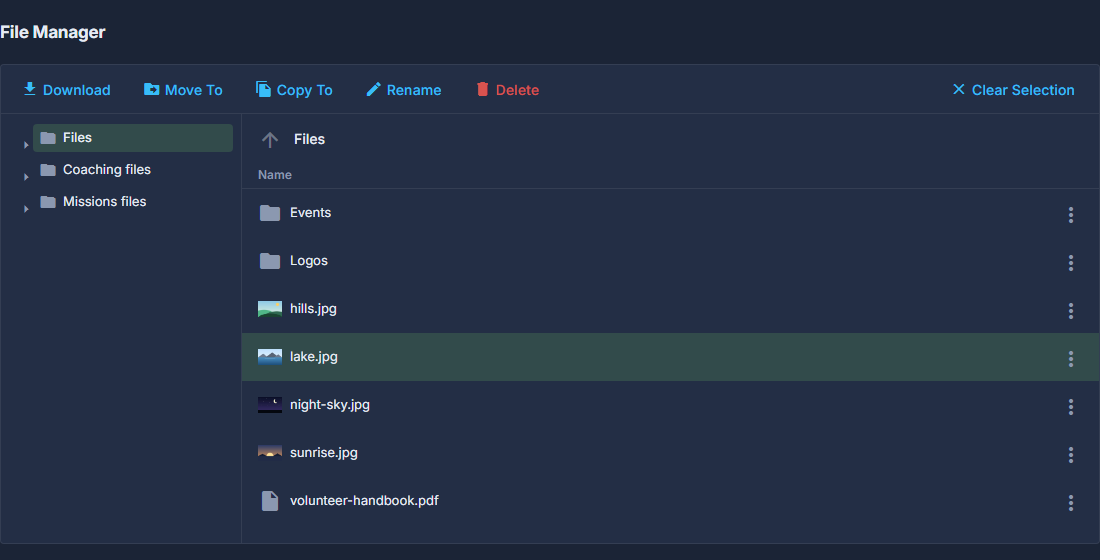
With a file picked up, the top of the page offers Download, Move To, Copy To, Rename and Delete. Clear Selection puts it back down. Press the grid button for pictures instead of a list.
Each picture is drawn as a thumbnail, which is the quickest way to find the one you want. Folders and documents, which have no picture to draw, keep an icon.
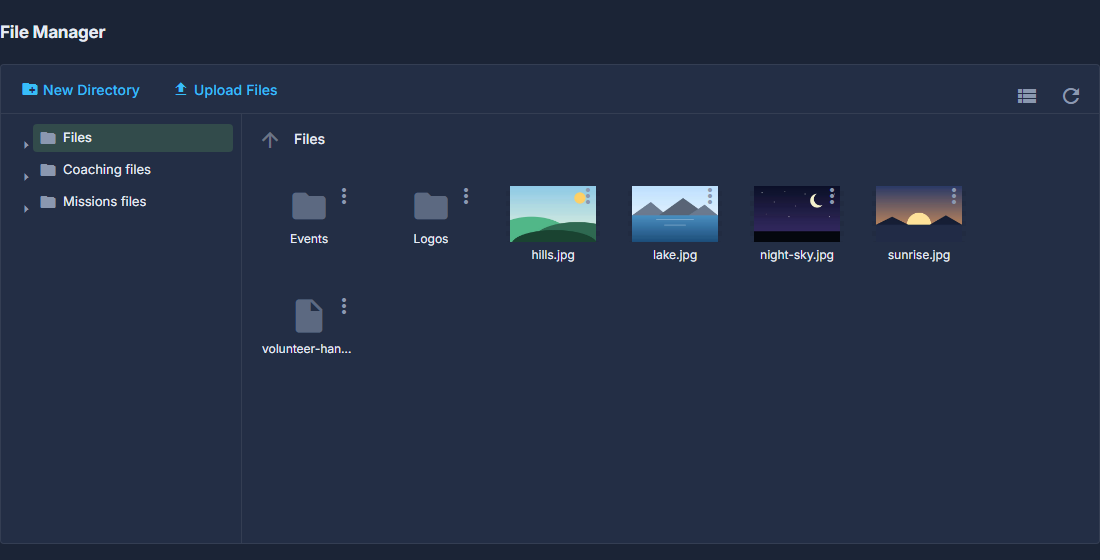
The grid view: every picture is shown as it will look, with an icon for a folder or a document such as a PDF. Look in the folders beneath your own, if you have them.
A ministry that sits under another can look at its parent's files, and a parent can look at each ministry's. Those are for looking at and choosing from; they cannot be changed from here.
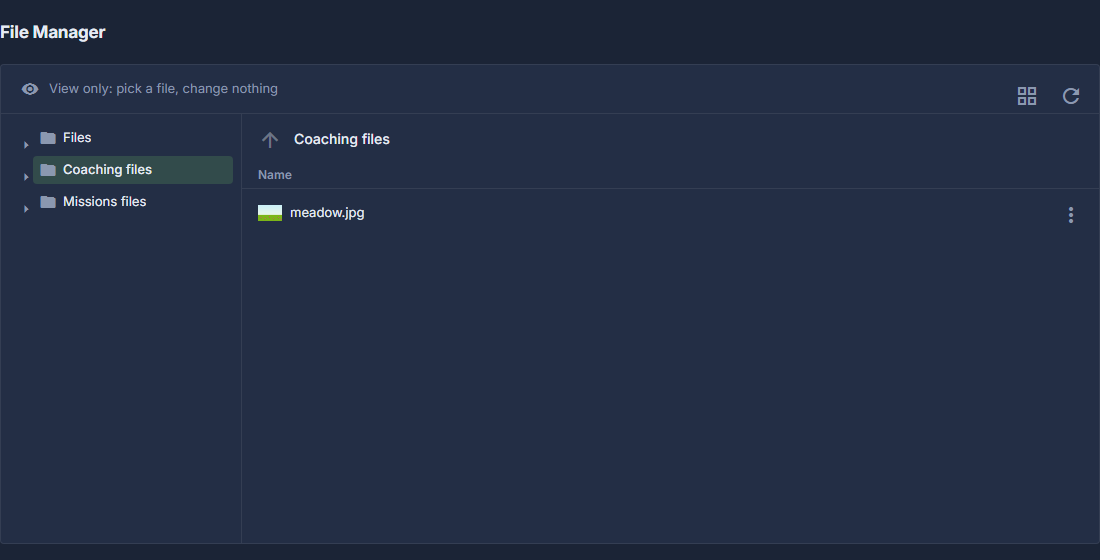
Another ministry's folder says "View only" and offers no Upload, New Directory, Rename or Delete.