The panel down the right of the product form is the store's own card and page, drawn from what the form holds right now - so a bad crop or a missing price is seen before it is saved.
The screens pictured here are an example ministry’s, so the names and figures in them are not yours. Everything they show works the same way in your own admin.
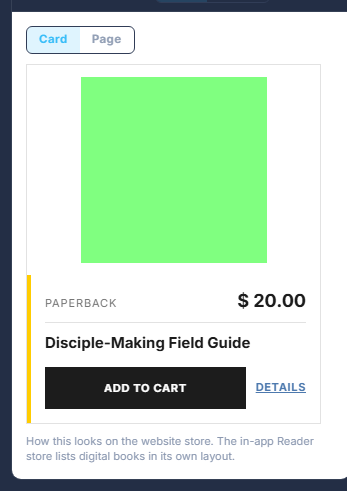
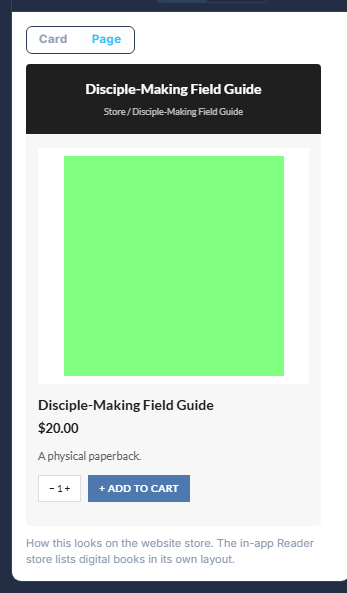
Open the product. The Store preview is down the right.
Press Card or Page at the top of it.
The choice is remembered.
Change the form and watch the preview follow.
Nothing needs saving to see it. The line under the buttons says when the product would not appear on the store at all, and which switch is the reason.
Tip
This is the website store. The reader app's own store lists digital books in its own layout.