There are three ways for a product to stop selling, and the dot on its row says which. Two are reversible with a click. The third is not.
The screens pictured here are an example ministry’s, so the names and figures in them are not yours. Everything they show works the same way in your own admin.


Open Back Office, then Commerce, then Products, and find the product. Its dot says where it stands.
To keep it but hide it from the store, open it, untick "Show in store?" and press Save.
The product still exists - a campaign can link to it - and the store preview says in words that it is withheld.
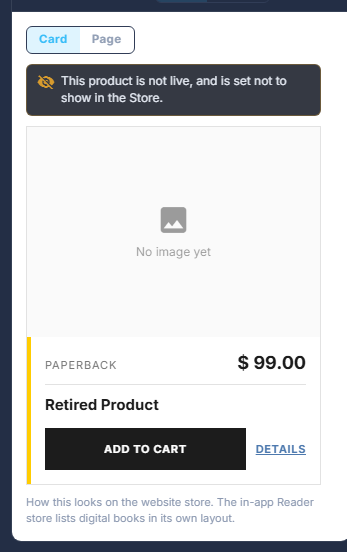
The preview when the product would not appear on the store, and why. To retire it, switch Live off at the top right and press Save.
Not live means it is nowhere: not the store, not the reader app. Staff still see it here, so it can be switched back on.
To delete it, press the trash can at the end of its row.
It shows when the mouse is over the row, and turns red under it.

The trash can at the end of a row, shown when the mouse is over it. Press OK.
Gone for good. Orders that bought it keep their own copy of its name and price.
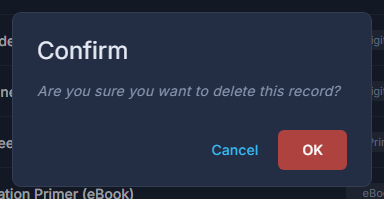
The question a delete asks. OK is red because it cannot be undone.
Delete cannot be undone, and anything that named the product - a campaign offer, a coupon's item tag - now names nothing. When in doubt, switch Live off instead.
A product marked for the store but not live wears an amber Not Live tag on its row, so somebody can decide which switch was meant.