Your store sells another organisation's catalogue. They own the products, the prices and the descriptions; what you decide is which of them appear in your store, and in what order.
The screens pictured here are an example ministry’s, so the names and figures in them are not yours. Everything they show works the same way in your own admin.
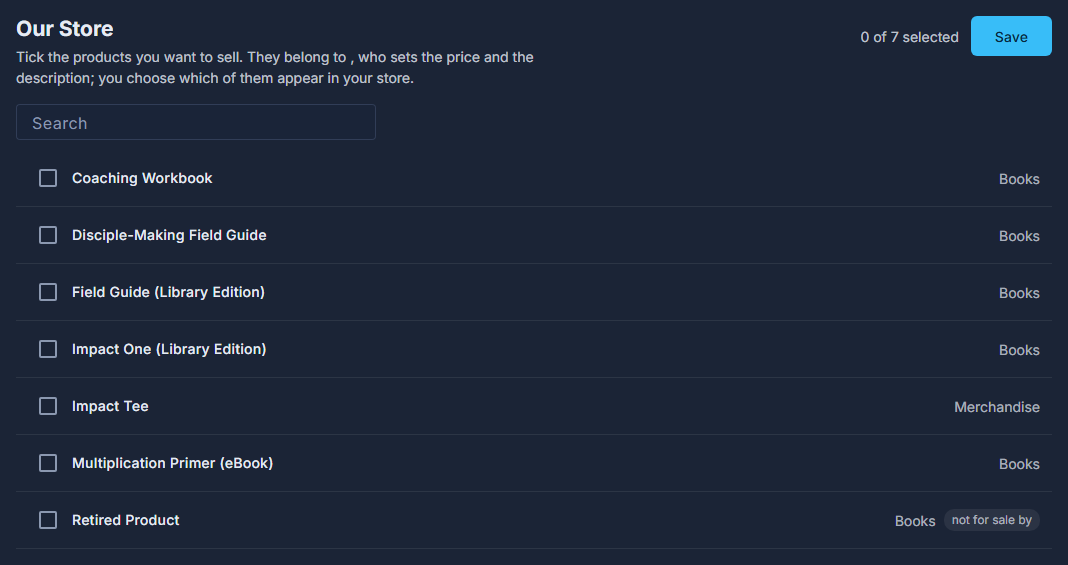
Open Back Office, then Commerce, then Our Store.
Tick the products you want to sell.
The count at the top says how many are on. Search narrows the list by title or category.
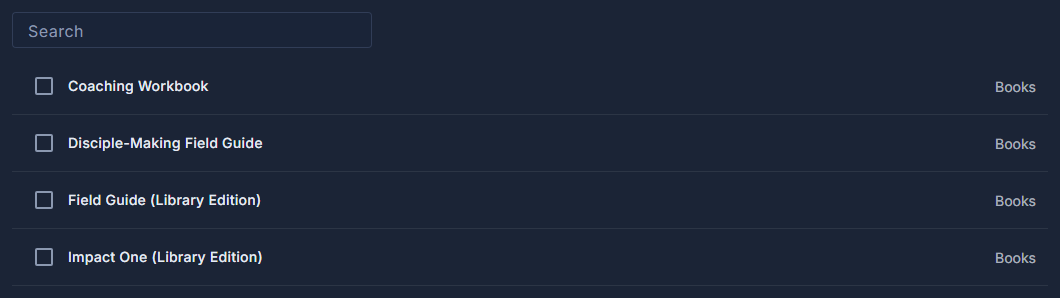
The list: a tick, the product's name and its category. Drag the rows under Shelf order into the order you want.
Shown once two or more shelves have something ticked. That order is yours and does not touch theirs; the button beside the heading puts it back to the owner's own order.
Press Save.
Nothing changes until you do - and what you save is what can be bought, not only what is shown.
How many are selected, and Save.
A product marked "not for sale by" its owner stays out of your store however you tick it, until they switch it back on.
Save with nothing ticked and your store is empty: nobody can buy anything until something is ticked again.
Prices, sale prices and coupons belong to whoever owns the products. A sale running on their store is already running on yours.