The event app has no page of its own to write - everything it shows comes from these fields, read live. Change a word here and every phone has it, with no new version of the app.
The screens pictured here are an example ministry’s, so the names and figures in them are not yours. Everything they show works the same way in your own admin.
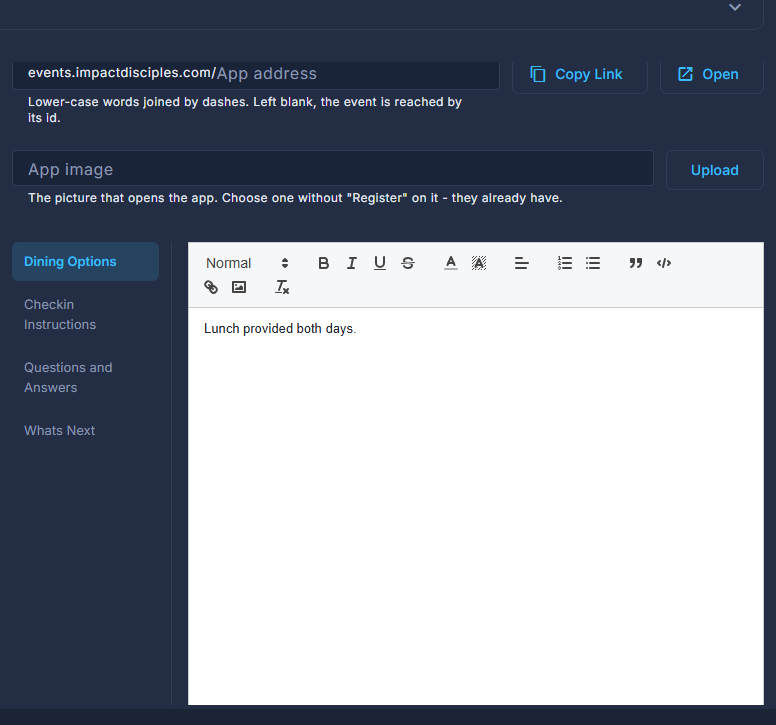
Open the summit and press App Content on the strip.
Set the App address, if your ministry has the event app.
Lower-case words joined by dashes. Copy Link copies the address attendees open; Open opens it. App image is the picture the app opens with - choose one without Register on it, they already have. Left blank, the hero is used.
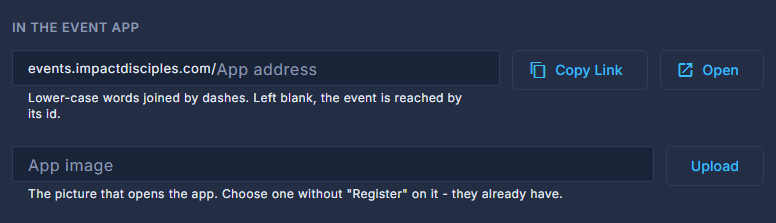
In the event app: the address and the app image. Write Dining Options, Checkin Instructions, Questions and Answers, and Whats Next - one tab each.
Checkin Instructions and Whats Next are the app's Today screen. Dining Options and Questions and Answers are its Info screen, under the venue.
Press App in the rail to see it as they will.
An empty screen there says which of these feeds it.
Press Save at the top.
Overview and Numbers both say which of these are still empty, and the wizard's checklist counts them.