A summit is drawn in three places - its public page, that page on a phone, and the event app an attendee carries - and each takes its words from different sections. The rail shows all three as you type, so you never have to save to see.
The screens pictured here are an example ministry’s, so the names and figures in them are not yours. Everything they show works the same way in your own admin.
Open the summit and, in the rail on the right, press Preview.
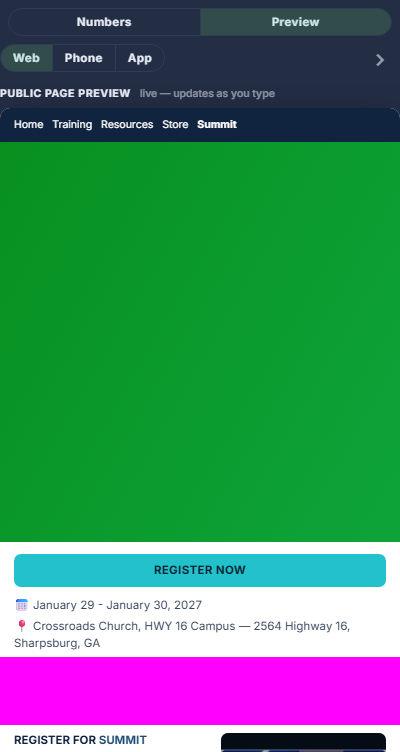
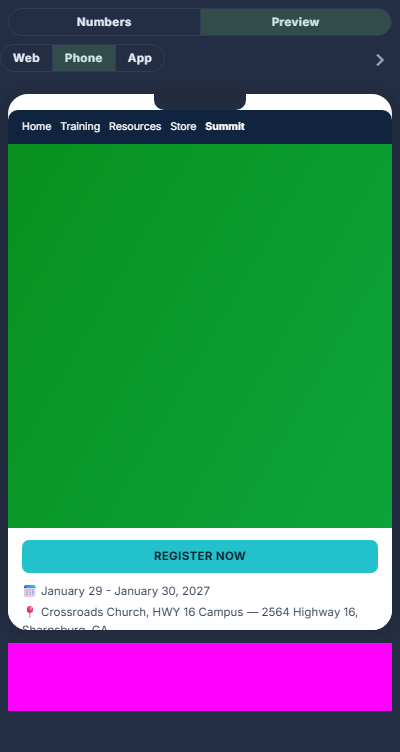
Choose Web, Phone or App.
One switch, in words, the same on every preview in the admin. Web and Phone are the public page, fed by Basics and Public Page. App is the attendee app, fed by App Content and the Agenda.

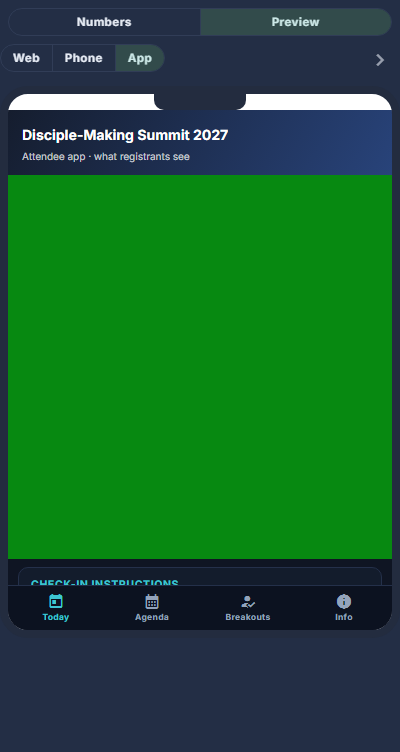
Web | Phone | App, Full size, and the chevron that hides the rail. In App, press the tabs along the foot of the phone.
Today opens with the summit's picture, then Check-In Instructions and What's Next. Agenda is the schedule. Breakouts is what people sign up from. Info is the venue, Dining Options and FAQs. An empty screen says which section feeds it.
Press Numbers to go back to the figures.
Moving to another step can switch the rail on its own: Public Page shows the web page, App Content the attendee app, and the rest the figures.
Press the chevron to hide the rail when you want the room, and press it again to bring it back.
Press Full size, beside the switch, to spread the rail over the whole screen.
Press it again, or Escape, to put it back. It always opens at its normal size.
The public page shows the whole hero image, not a band of it - a summit poster has its words at the top and bottom. With no promo video there is no empty video box; the description takes the width.
The Confirmation Email section has its own preview, Desktop | Phone, because an email is not a web page.