The public page is what a visitor sees before registering: a poster, a video if you have one, and the description. The rail beside the form redraws it as you type.
The screens pictured here are an example ministry’s, so the names and figures in them are not yours. Everything they show works the same way in your own admin.
Open the summit and press Public Page on the strip.
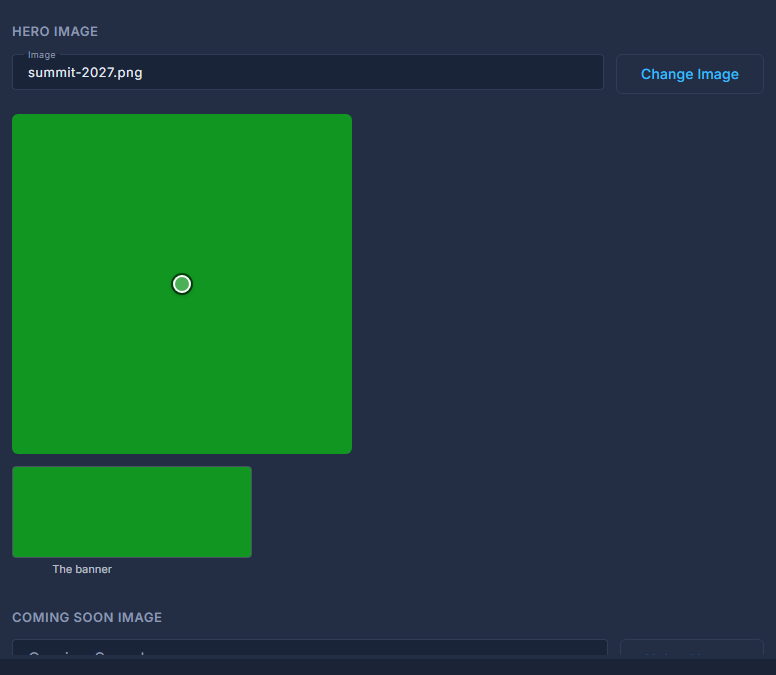
Press Upload Image and pick the hero.
The whole picture is shown on the page, so a poster with words on it is safe. It is also the picture that opens the event app unless App Content sets another. The point you drag on it chooses the part kept where the picture is cropped to a banner.
Upload a Coming Soon image, if you want one.
It is what the Summit page shows at Coming Soon and Early Bird, until you move the summit to Open. Left blank, the hero is used; the X beside it goes back to the hero.

The Coming Soon image: blank here, so the hero is used. Paste the promo video's YouTube link, or leave it blank.
The link is trimmed to the video's id when you save. With none, the description takes the full width - there is no empty video box.
Write the Web Description.
Check Web and Phone in the rail, then press Save.