A segment is a question, not a list. It is asked again every time it is used, so somebody who stops matching stops receiving and somebody who newly matches is picked up on their own.
The screens pictured here are an example ministry’s, so the names and figures in them are not yours. Everything they show works the same way in your own admin.
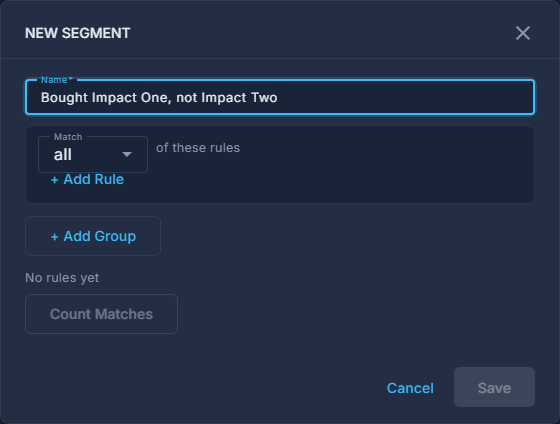
Open Back Office, then People, then Contacts, open the ☰ and choose New Segment.
Give it a name that says what it asks.
e.g. Bought Impact One, not Impact Two.
Set the first group: Match all, any or none of these rules, then press + Add Rule.
A rule can be a product bought, an event registered for, a book, a list, a tag, an email status, or one of your own contact fields.
Press + Add Group for the second half of a "this but not that" question.
Every group has to hold, and each one matches all, any or none of its own rules.
Press Count Matches to see how many it finds, then Save.
A saved segment is offered as an audience when you set a campaign up - build it here once and pick it there.
Deleting a segment - choose it, then Delete Segment under the ☰ - does nothing to the contacts in it. A campaign pointing at a segment that has gone refuses to send rather than mailing everybody.