The list loads a page at a time, but the search box and filters never look only at what is on screen: they ask about every contact you have.
The screens pictured here are an example ministry’s, so the names and figures in them are not yours. Everything they show works the same way in your own admin.
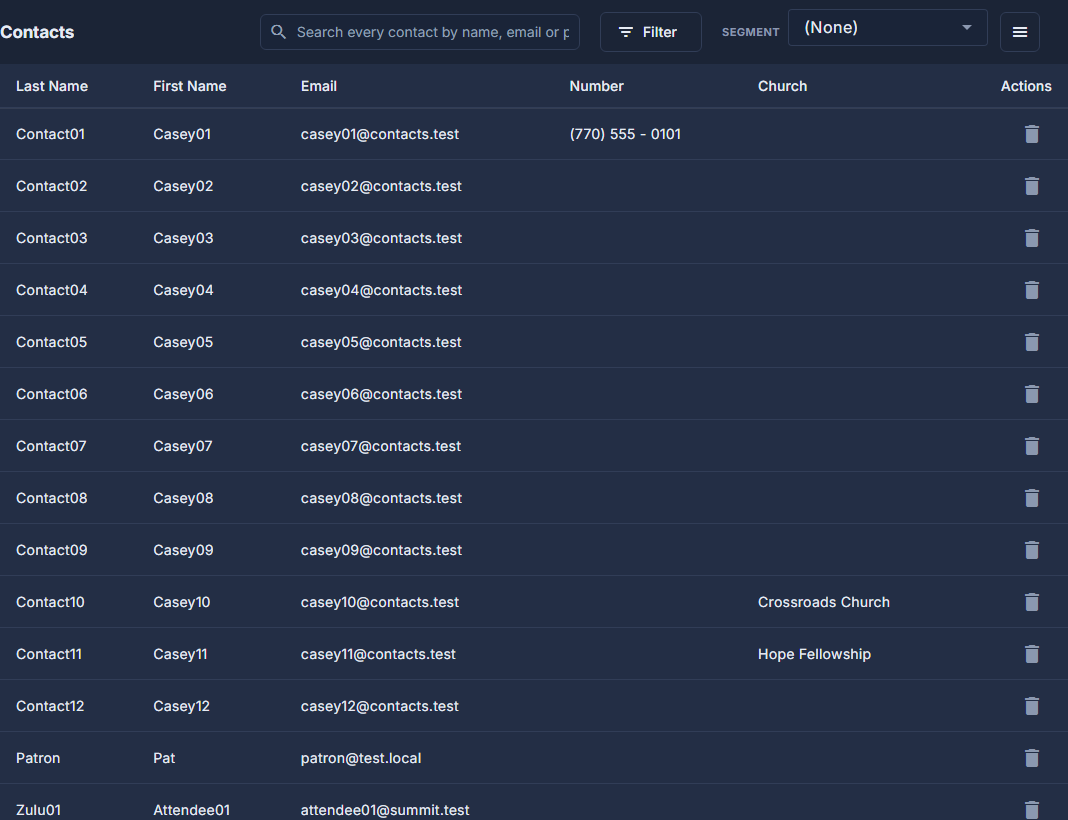
Open Back Office, then People, then Contacts.
Type a name, an email address or a phone number into the box at the top.
It searches every contact, from the start of a name, an address or a number - however the number is typed. Empty the box, or press its x, to go back to the whole list.

The search box, which asks the server. To see who arrived when, press Filter and choose First Seen.
On, after, before, between, or in the last so many days. While it is on, the list is in order of First Seen, newest first, instead of by surname.
For a question rather than a name, choose a saved Segment instead.
The two are deliberately exclusive - choosing a segment empties the search box and the filters - so you are never looking at a list two filters are arguing about. New Segment, Import Contacts and Contact Fields are under the ☰, and Edit Segment and Delete Segment join them while a segment is chosen.
Double-click a row to open that person.
Tags and First Seen are there but switched off. Open the ☰ at the top and choose Columns to show them; a contact field set to "Show as a column" appears here too.
An amber edge on a row means either the address has stopped accepting our email or the last purchase disagreed with what is on file. The Email and Pending Review columns say which.
The red trash can at the end of a row deletes the contact. It asks first, and there is no undo - for one person with two records, open one and choose Merge… under its ☰ instead.