Contacts are made by what people do - buying, registering, subscribing, or making a reader account - so the list mostly keeps itself. When you do add somebody yourself it is one of three: one person who asked, a list you already hold, or a request somebody has sent you.
The screens pictured here are an example ministry’s, so the names and figures in them are not yours. Everything they show works the same way in your own admin.
For one person who asked, open Back Office, then People, then Contacts, open the ☰ and choose New Contact.
Everything you hold about somebody is on the one pop-up: email, name, phone and address, a note saying how they came to be added - "Rang the office and asked to be added" is the kind of thing it wants - and the lists they have agreed to be emailed on. Those start OFF and you tick them yourself, because typing somebody in is not the same as them asking for your newsletter. The record keeps which administrator added them.
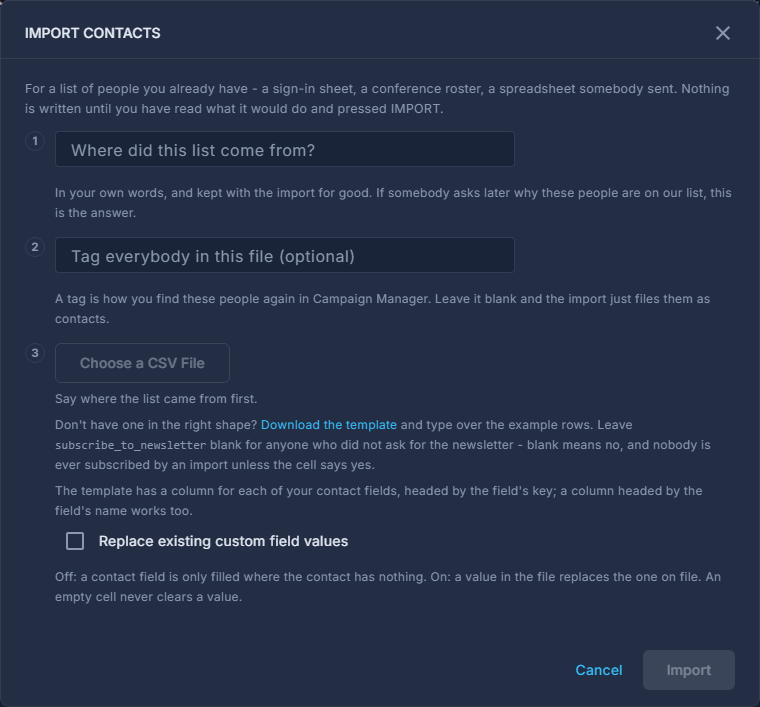
For a list you already hold, choose Import Contacts from the same menu.
Only an administrator sees either one: both decide who is in your contact database and, through those switches, who gets mailed.
Say where the list came from.
In your own words - "Summit 2026 paper sign-in sheets". It is kept with the import for good, so there is an answer if anybody asks later why these people are on your list.
Tag everybody in the file, if you want to find them again.
Optional. A tag is how a campaign picks them out afterwards.
Press Choose a CSV File.
Nothing in the right shape? Download the template on that same step and type over the example rows. It has a column for each of your contact fields.
Read "What this file would do", then press Import N Contacts.
Nothing is written until you do. The plan says how many are created, how many updated, who would be subscribed, and which rows are skipped and why. Tick "Replace existing custom field values" only if the file should overwrite what your own fields already hold.
If the file subscribes anybody, tick "These people asked to receive email from us".
Import stays greyed out until you do. Tick it only if every one of them asked for email - it is kept on each contact it subscribes, with your name and the date, as the record of their consent.
For one person who has written in, open Home and press the add-person button on their row.
It makes the contact out of what they typed, so you are not copying it across by hand.
If the tag you type is what an automated campaign sends on, the plan names those campaigns and makes you tick a box to say you understand those people will be emailed.
Leave subscribe_to_newsletter blank for anybody who did not ask for the newsletter - blank means no. An import never resubscribes somebody who had unsubscribed.
A person named on an organization can be made a contact from there too: open the organization and press Promote to Contact.