A tag lands on the contact record and a campaign can aim at it. A rule writes it from now on, so "everybody who bought book one" stays true without anybody maintaining a list.
The screens pictured here are an example ministry’s, so the names and figures in them are not yours. Everything they show works the same way in your own admin.
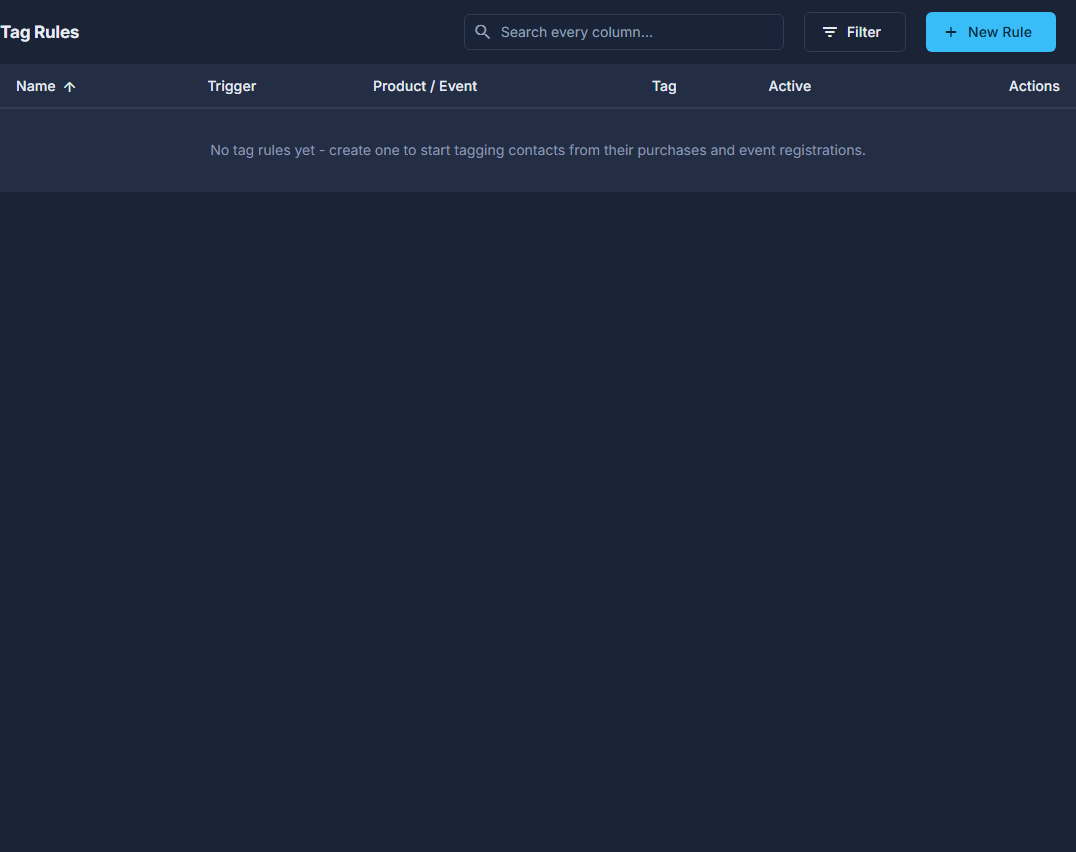
Open Back Office, then People, then Tag Rules, and press New Rule.
Name the rule, then answer "When a contact…".
Purchases a Product, Registers for an Event, Checks In at an Event, or Joins the Newsletter. "Registers for" fires the moment somebody signs up, whether or not they come. "Checks In" fires when the door check-in marks them in, and the tag is dated to that check-in, so it tags only the people who actually turned up; undoing a check-in does not take the tag off. "Joins the Newsletter" tags anyone who subscribes from the website or a campaign pop-up at the moment they CONFIRM, never on the request, so the tag means a real subscriber; give an email the same tag as its trigger, with a delay, and you have a welcome series. It applies from now on, never to existing subscribers.
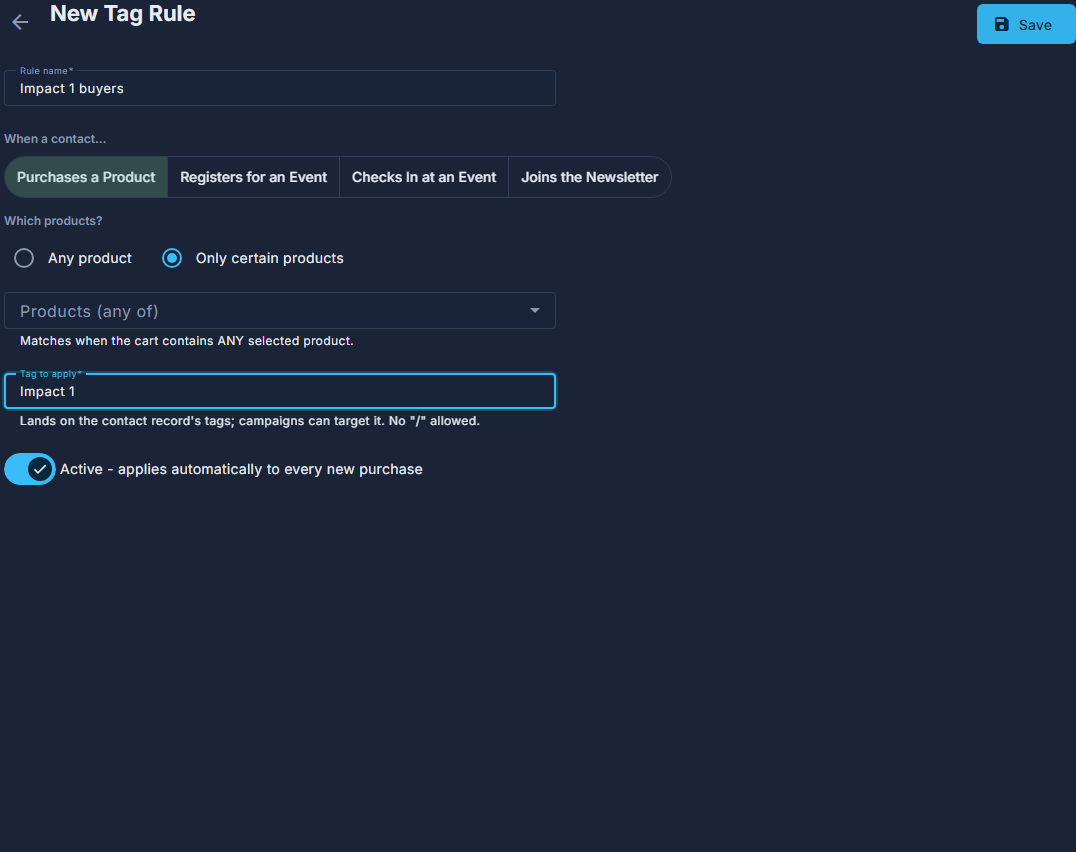
A new tag rule: the trigger, the products, the tag. Answer the second question - how wide the rule reaches.
For a purchase, "Which products?" offers Any product or Only certain products. For an event, "Which events?" offers Any Summit, Any event, or Only certain events; for a check-in it offers Any event or Only certain events. Any product and Any event include ones you add later, so there is no list to keep up to date; pick "Only certain…" and a list appears, where any one of the ones you choose is a match.
Type the tag to apply.
Anything you like, as long as it has no "/" in it. EVERY event rule - Any Summit, Any event, or certain events - can also split by what people paid: fill in the second box and the first becomes "Tag for FREE registrations" while the paid box takes the rest. A Summit rule has always demanded both - every Summit registrant, at a current or a future one, gets exactly one of the two, and a free registration is one that checked out with a 100%-off coupon code; on the other two the paid box is yours to use or leave empty, and leaving it empty means one tag for everybody.
Leave Active switched on and press Save, at the top right.
To catch the people who already qualify, open the rule again and choose Apply to Existing under the ☰.
It asks first, naming what it is about to read - "past purchases", or "past purchases, every one of them" for an Any-product rule, or "past event check-ins" for a check-in rule, which reads only the registrations that were checked in - then scans and tells you how many records it read, how many matched and how many contacts it tagged. A newsletter rule has no Apply to Existing at all, for the reason in the warning below.
An email can be set to send on a tag. Where one is, anything that applies that tag - this rule, an import, or Apply to Existing - is what sets those emails going.
Apply to Existing dates each tag to the ORIGINAL purchase or registration, not to today. An automated email that waits so many days after that tag is therefore already overdue for every contact the sweep tags, and goes to all of them on its next run. On an Any-product rule that is every buyer the ministry has ever had. The confirmation says so before you agree; check whether the tag has a series on it first.
Renaming the tag or deleting the rule - the red trash can on its row - does not untag anybody. Tags already applied stay until you take them off the contact.