A contact's record is mostly written by what they do - buying, registering, opening emails. What you change by hand is who they are, what lists they are on, their tags and your notes.
The screens pictured here are an example ministry’s, so the names and figures in them are not yours. Everything they show works the same way in your own admin.
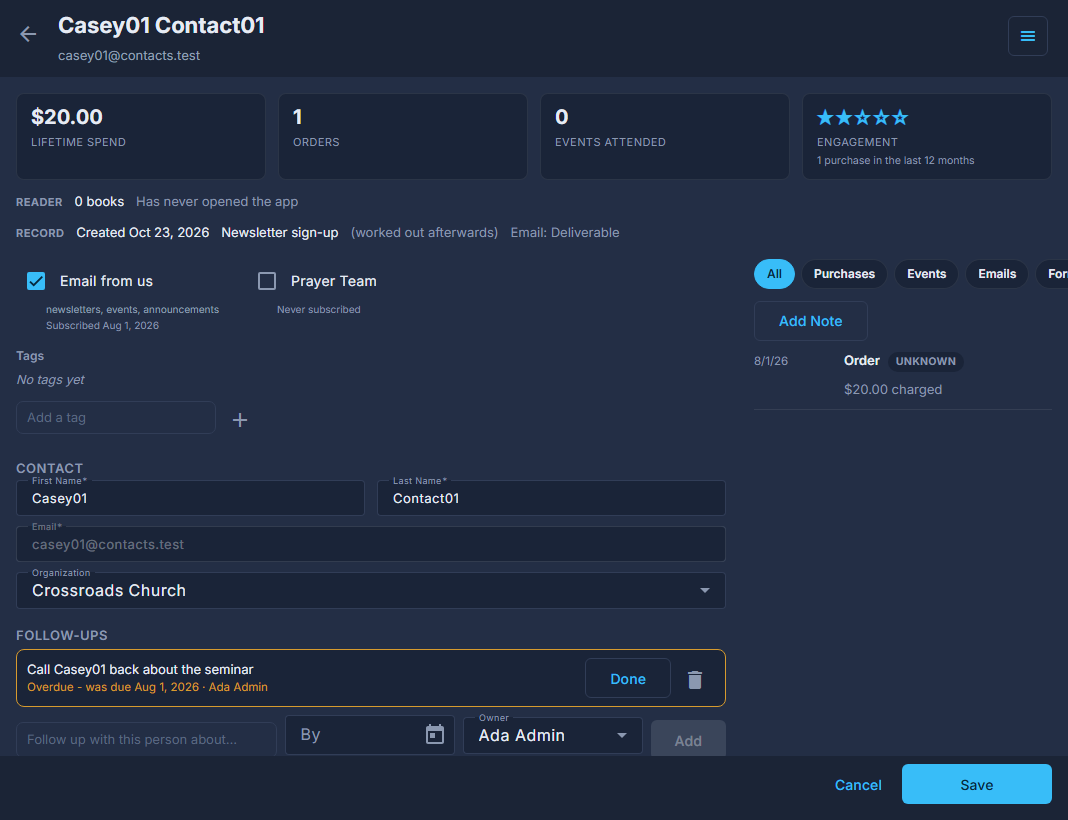
Open Back Office, then People, then Contacts, and double-click the person.
The tiles across the top say what they have spent, how many orders and events, and how engaged they are. Hover Engagement for how the stars are worked out.
Tick or untick Newsletter and Prayer Team.
The date beside each says when they joined or left that list. Unticking is an unsubscribe.
Add a tag: type it in "Add a tag" and press Enter.
Tags are what campaigns aim at. Press the x on a tag to take it off. Tags a rule would apply are offered under the box.
Choose their Organization, and fill in "More details".
"More details" holds your own fields - the ones listed under Contact Fields, in the Contacts list's ☰. Only what you change is written.
If a strip says a purchase disagreed with what is on file, press Use New Value or Keep Current.
That is the amber "Pending Review" on the list. Nothing changes until you choose.
If a strip says the address bounced, fix the address, then press Mark Deliverable Again.
Campaign emails skip a bounced address until you do.
Press Save.
Cancel throws away the form; notes and follow-ups save as you add them.
The right-hand side is everything that has happened with this person - purchases, events, emails, forms, notes - newest first. Add a note there when you have spoken to them.
Somebody who reported one of our emails as spam is taken off both lists and skipped by campaigns. Receipts and event information still reach them. Do not put them back on a list unless they have asked.
Merge…, under the ☰ at the top, is for one person with two records. The one you keep takes the other's tags, notes and email address; the other is hidden from the list, not deleted.