A contact record keeps name, email, phone and addresses. Anything else your ministry needs to know about a person is a field you define once here; staff then fill it in on each contact, an import can fill it from a spreadsheet, a segment can ask about it and an email can print it.
The screens pictured here are an example ministry’s, so the names and figures in them are not yours. Everything they show works the same way in your own admin.
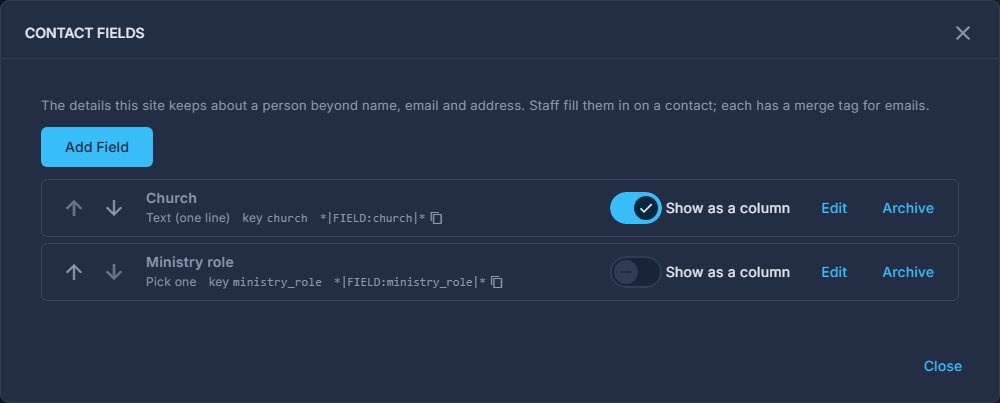
Open Back Office, then People, then Contacts. Press the ☰ beside the search, choose Contact Fields, and press Add Field.
Only an administrator can. There is a limit on how many a site may have; archive one to make room.
Give it a Name, check the Key, and choose the Kind of field.
The name is what staff see, and can be reworded any time. The key is used in merge tags and spreadsheets and cannot change once saved; nor can the kind.
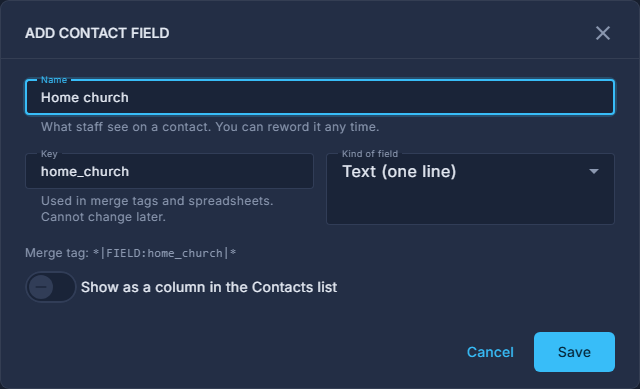
The Add Contact Field pop-up. For a choice field, press Add Option for each answer people can pick.
A saved option is retired rather than removed, because contacts may already hold it.
Turn on "Show as a column in the Contacts list" if you want to see it there, then press Save.
Later: Edit to reword it, Archive to hide it everywhere, Restore to bring it back.
Archiving keeps every contact's value; restoring brings them back with it. The arrows change the order fields appear in on a contact.
Each field has a merge tag - press it to copy. Put it in an email and every reader sees their own value.
Fields marked "From" another site belong to the parent site and can only be hidden here, not changed.