The reports are read-only lists built for taking away: every contact in one, subscribers in the other.
The screens pictured here are an example ministry’s, so the names and figures in them are not yours. Everything they show works the same way in your own admin.
Open Back Office, then People, then Contacts under Reports.
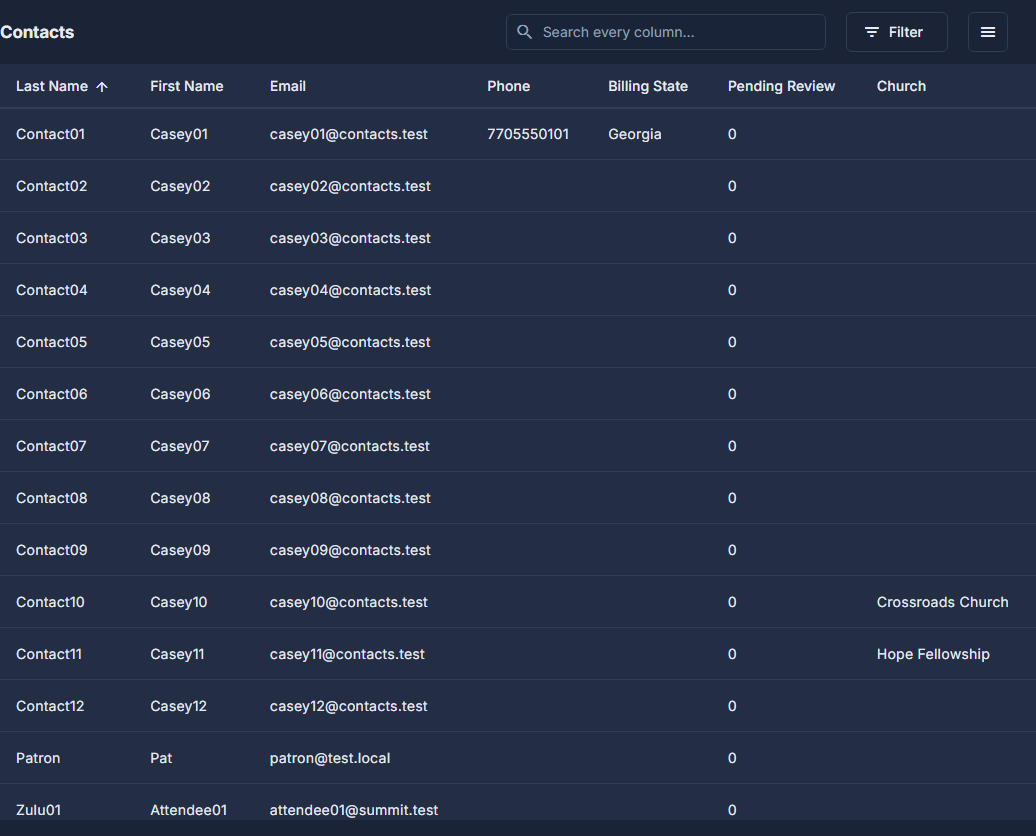
Every contact, in surname order. There is nothing to fill in first.
Narrow it with the search box and Filter, and choose Columns under the ☰ to show the ones you need.
Open the ☰ at the top of the list and choose Export to Excel.
It exports what is on screen after your search and filters, not always the whole list.
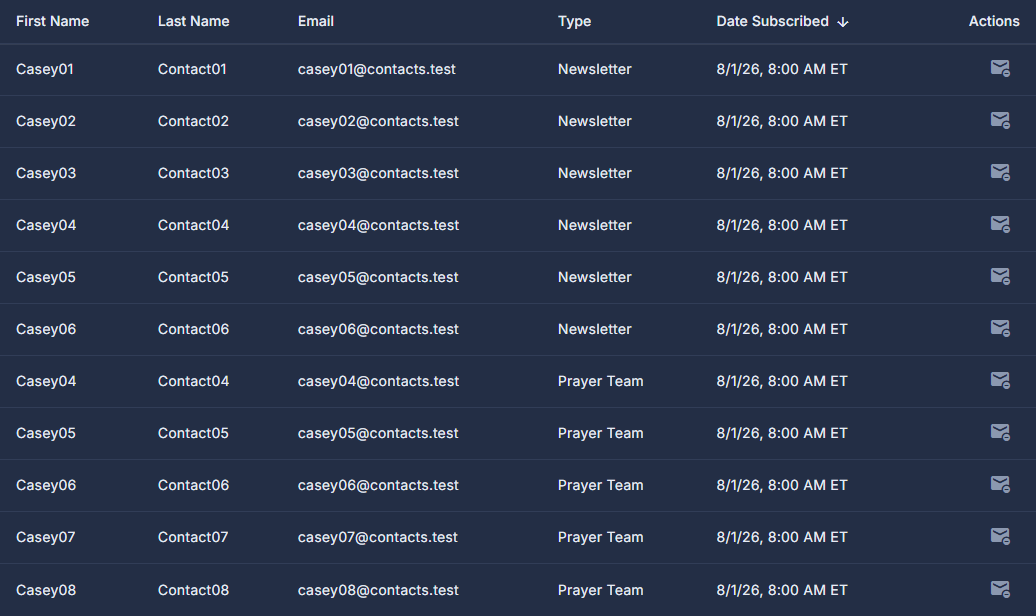
For subscribers, open Back Office, then People, then Subscribers under Reports, tick a criterion and press Generate Report.
Date Subscribed, Type, or both. At least one has to be ticked before it will run.
To write to a whole list, open the ☰ at the top and choose Send Newsletter or Send Prayer Request.
A subject, the message, and a box to show it on the website too. It confirms with the real number before anything is sent.
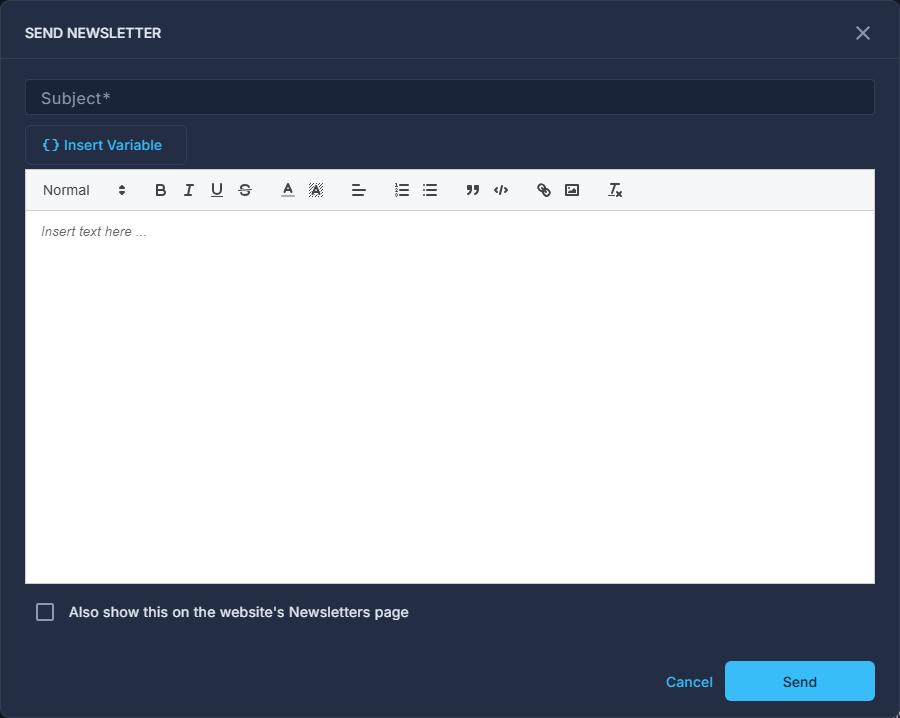
The Send Newsletter pop-up.
Send Newsletter and Send Prayer Request go to the whole subscriber list for that type, not to the rows you have just filtered down to.
The unsubscribe button on a row of the Subscriber report takes that person off the list, for when they have asked you to.