Everybody who signs in here is an admin user. An Admin sees everything; an Employee sees only the screens they have been granted; an Editor works the Library and nothing else. This screen is where those accounts are made and changed.
The screens pictured here are an example ministry’s, so the names and figures in them are not yours. Everything they show works the same way in your own admin.
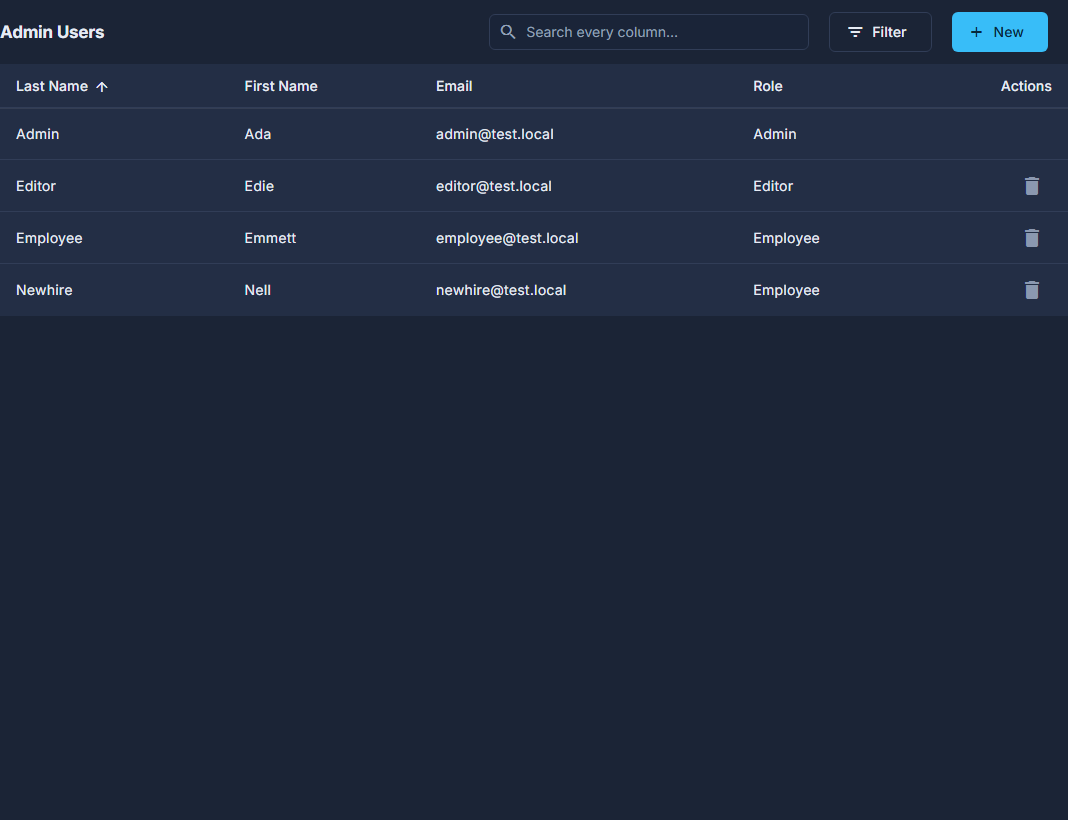
Press your name at the top right, then Admin Users.
It is not in the menu on the left; only an administrator sees it in the one under your name.
Press New, or double-click a person to open them.
On Info: First Name, Last Name, Email and Role. The email is what they sign in with, and it cannot be changed once the account is saved; to use a new address, add a new account.
For an Employee, open the Permissions tab and tick what they may do on each screen.
View, Add, Edit and Delete, screen by screen. Ticking a box under a screen makes its group appear in their menu; only the boxes ticked are granted.
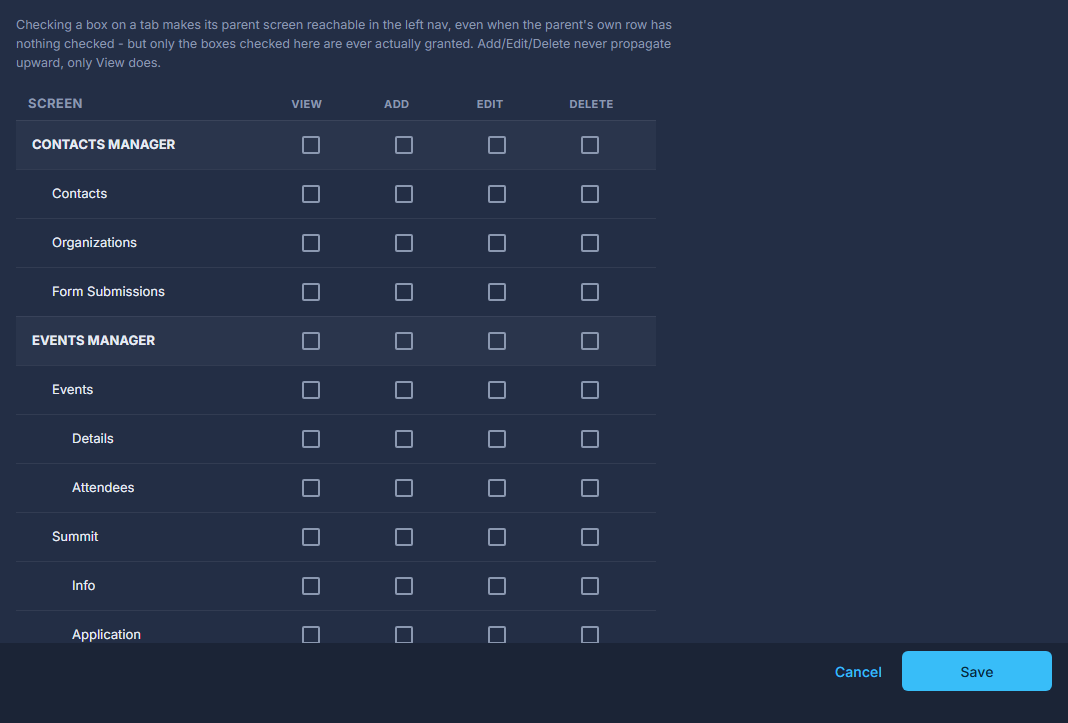
The Permissions tab for an Employee. Press Save.
The other way to grant one screen: open its area in the menu on the left, press the three dots beside the screen, then Manage Access. Both write the same permissions.
The red trash can removes the account and their login with it. It asks first. You cannot delete your own account.
Logs and Admin Users can never be granted to an Employee, so nobody can give themselves more than they were given.