Your automatic emails all go out on the same letterhead, and until you open this page it is worked out for you: your logo from Settings, your name, your social links. That is usually right, which is why a brand-new ministry sends properly dressed email before anybody sets anything. This page is for when you want it different.
The screens pictured here are an example ministry’s, so the names and figures in them are not yours. Everything they show works the same way in your own admin.
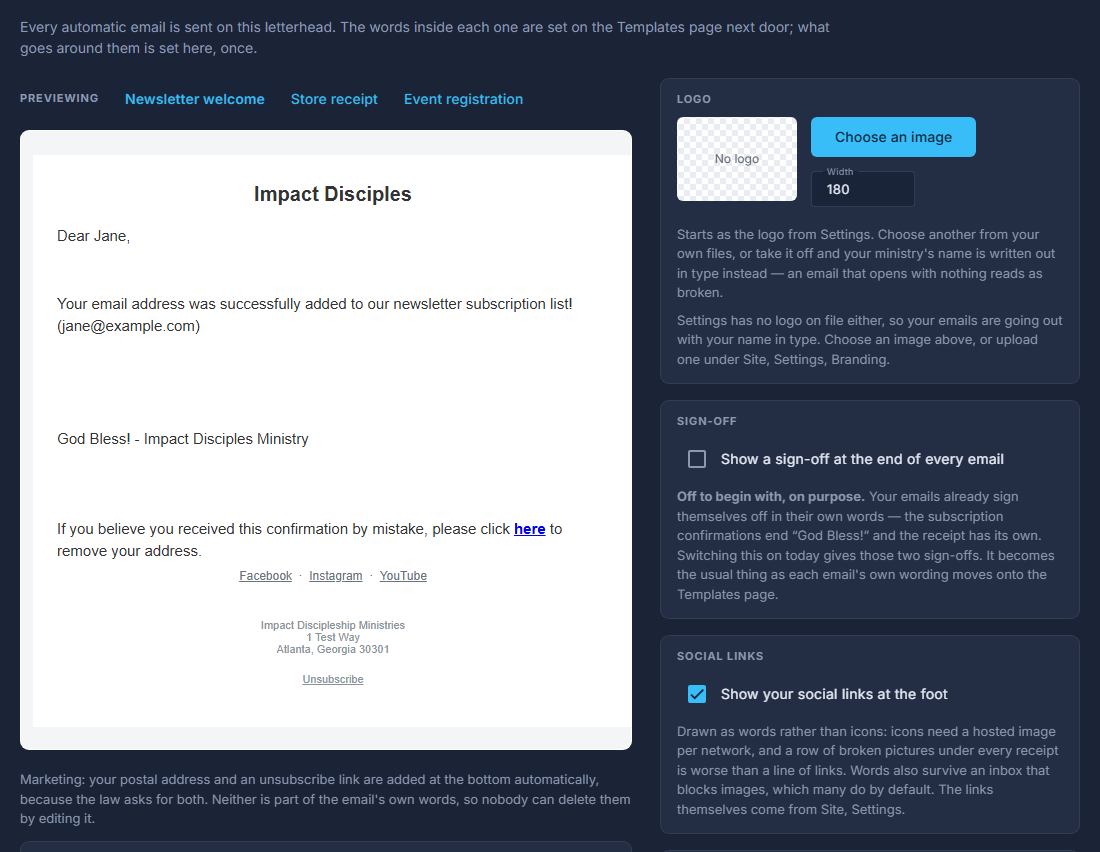
Open Site, then Email, then Shell.
Change something on the left and watch the email on the right.
The preview is the real thing, not a drawing of it - it is built by the same code that sends your email, so what you see is what arrives. The three buttons above it show the letterhead around three different emails.
Logo: the address of the picture at the top, and how wide to draw it.
It starts as the logo from Settings. Clear it and your ministry's name is written out in type instead, because an email that opens with nothing reads as broken. Use the Settings logo puts it back.
Sign-off: off to begin with, and worth reading before you switch it on.
Your emails already sign themselves off in their own words - the subscription confirmations end "God Bless!" and the receipt has its own. Switching this on today means those emails carry two sign-offs. It is here ready for when each email's own wording moves onto the Templates page.
Social links: on or off. The links themselves come from Settings.
They are drawn as words rather than icons on purpose - icons need a hosted picture per network, and a row of broken images under every receipt is worse than a line of links. Words also show up in an inbox that blocks pictures, which many do.
Colours: the page behind the letter, the letter itself, and the text.
These start neutral rather than as your brand colours, deliberately. A brand colour behind body text is the usual way an email becomes hard to read, and neither you nor we can see how it came out in somebody else's inbox.
Press Save. Every automatic email from then on is sent on it.
Nothing is stored until you do. Back to the derived letterhead throws away your choices and returns to the worked-out one.
Only what you change is stored. So if you set just the sign-off and later upload a new logo in Settings, your emails pick the new logo up - your sign-off is not holding the rest of the letterhead at the day you saved it.
The postal address and the Unsubscribe link at the bottom are NOT part of the letterhead and cannot be edited or removed here. The law asks for both on marketing email, so they are added when the email is sent. That is also why nobody can delete them by editing an email's words - they were never in them.
Switch between the three previews and look at the bottom of each. The newsletter welcome carries the address and the opt-out; the receipt and the registration carry neither, because they answer something the person just did. Offering somebody an unsubscribe link under their own order receipt invites them to opt out of their purchase.
The panel at the bottom opens to show the HTML that actually gets sent. You will not normally need it, but it is there if you are checking something with us.
You will see this letterhead again when you edit one of your automatic emails: it is drawn round the part you are editing, greyed, and marked "not editable here". This page is the only place it changes, and a change here reaches every automatic email at once.