Most of the email your people receive is not sent by anybody: a receipt goes out when somebody buys a book, a confirmation when they register, a reminder the morning before an event. Until this screen there was no one place that said which emails exist, so "what did we send them?" meant asking us. This lists all of them, says when each one goes out, and opens the ones you can change.
The screens pictured here are an example ministry’s, so the names and figures in them are not yours. Everything they show works the same way in your own admin.
Open Site, then Email, then Templates.
Read down the three headings to find the email you mean.
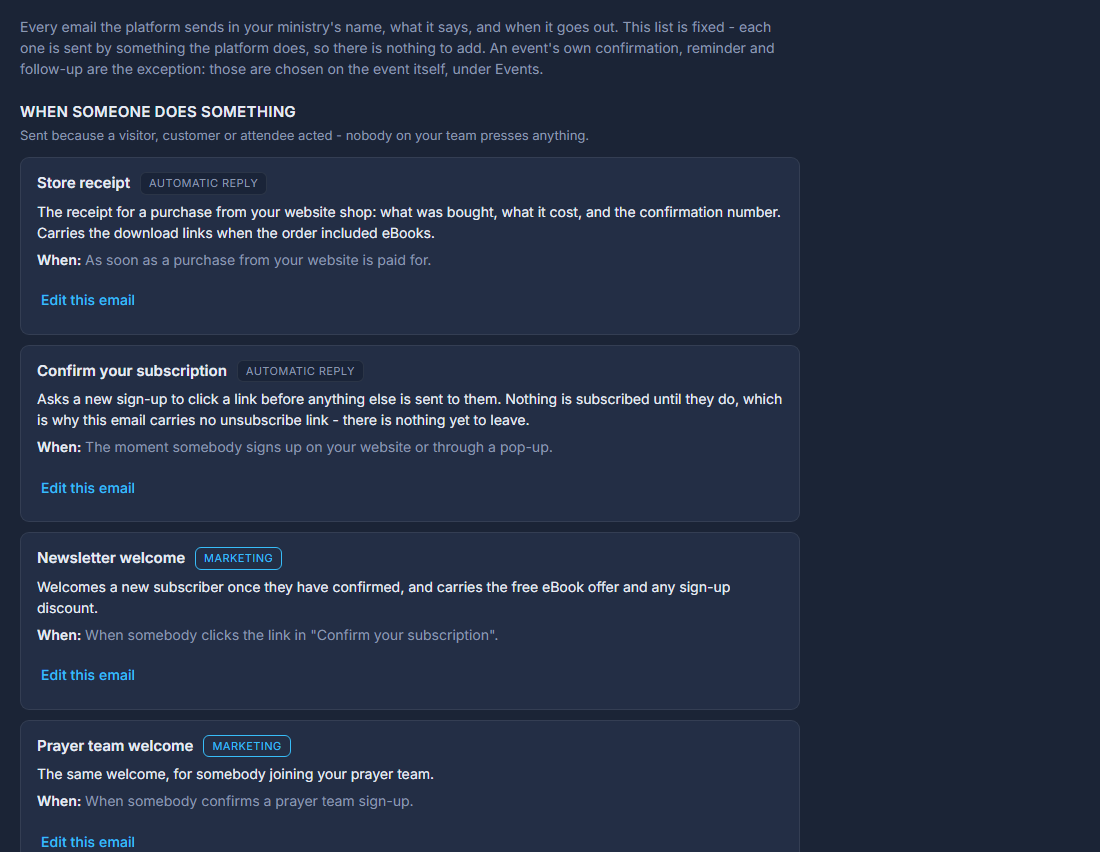
They are grouped by what sets them off rather than alphabetically, because that is usually what you know: something a visitor did, something your team did, or the clock. A purchase, a registration and a sign-up are all in the first group.
Each row says what the email is and, under "When:", exactly what makes it go out.
The second line is the one worth reading before you change anything - an email sent "from 9:00 AM the day before" reaches people at a different moment from one sent when they register.
Press Edit this email on a row that has it, and the Email Designer opens on that email.
Change the wording, press Save, and the next one sent uses it. Back returns you to this list.
The chip on each row says Marketing or Automatic reply, and it is not decoration. A Marketing email carries your postal address and an unsubscribe link, added automatically at the bottom - the law asks for both. An Automatic reply answers something the person just did, so it carries neither: offering somebody an unsubscribe link under their own order receipt invites them to opt out of their purchase.
You cannot add an email here, and that is on purpose rather than a missing button. Every row is an email the platform actually sends; one you added would be a template nothing ever sent.
Some rows say "Each event sets its own wording, on the event itself" instead of offering Edit. A registration confirmation and a reminder belong to one event rather than to all of them, so they are set on that event - open the event and look for its email template.
When you open one of these in the Designer, the letterhead is drawn above and below the part you are editing - your logo at the top, the sign-off, social links, postal address and unsubscribe at the bottom - and it is greyed and marked "not editable here". That is deliberate: you are editing the middle of the letter, and the letterhead is set once for every automatic email on the Letterhead page. Change it there and every one of these follows.
A line at the bottom may say some emails belong to features your account does not use. Nothing is wrong - a shop receipt is not listed for a ministry with no shop. It is said out loud so a shorter list does not read as a missing email.