A paperback is the default. A tick box makes a product a PDF download, a button starts a second product that sells the same book in the reader app, and a third box makes a product sell its whole shelf at once. A book in two formats is two products.
The screens pictured here are an example ministry’s, so the names and figures in them are not yours. Everything they show works the same way in your own admin.
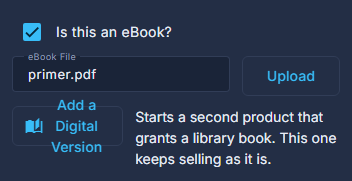
For a PDF, tick "Is this an eBook?" and press Upload beside eBook File.
The buyer gets a link to the file after paying.
For a book read in the reader app, open the printed book's product and press Add a Digital Version.
It starts a second product - "<title> - Digital", in the Digital category, on the series' digital shelf, with the cover copied - and the paperback keeps selling as it is. Save the printed product first: the button asks you to.
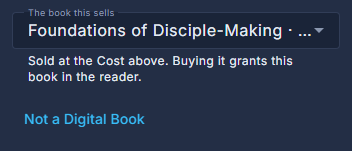
Check "The book this sells", set the Cost, and press Save.
The book is chosen for you when only one has the same title. The buyer's account is given the book, and a full refund offers to take it back again. Not a Digital Book turns it back.
For a bundle, tick "This is a bundle of its shelf" under Where it appears.
It sells every product on the same series shelf as one, and the card says "The whole series". It needs a Series of its own to sit on.
Choose any UOM.
A download weighs nothing: its Weight is set to 0 and cannot be changed, and UOM is still required.
Press Save.
The tag on each row - Print, eBook, Digital, Free or Series - is worked out from these boxes and the price, the same way the store card labels it.
An order of nothing but downloads has no shipping and no address.