A coach is added in one place only - on the session or breakout they are leading - so you are never sent to another screen in the middle of building an agenda. Somebody already on your Team page is used as they are: the summit shows their Team page picture and bio, and there is never a second copy of them to keep up.
The screens pictured here are an example ministry’s, so the names and figures in them are not yours. Everything they show works the same way in your own admin.
Open Back Office, then Events, then Summit, and open the summit's Agenda.
Open the session or the breakout block they are leading.
Press + Add a Coach beside Coaches - on a block, the add-person icon.
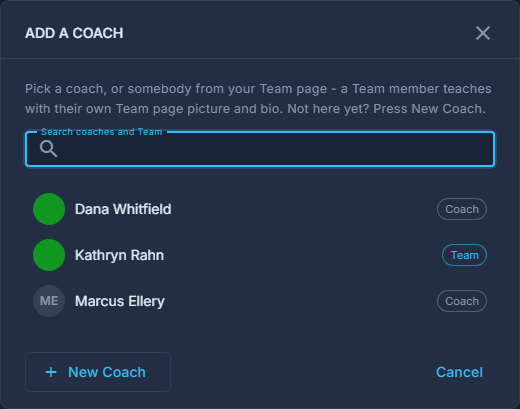
ADD A COACH opens with everybody who can lead a session: your coaches and the people on your Team page, each labelled Coach or Team. Type part of a name to find them.
Press the person.
They are on the session. A Team member keeps their own Team page record - their picture and bio are the ones the summit page shows.
Somebody new? Press New Coach.
The whole coach form opens: Picture, First and Last Name, Title, Organization, a link, and Biography on its own tab. The card beside the form is how they appear under FEATURED SPEAKERS on the summit page. Press Save and they are on the session.
Press Save on the session, then save the summit.
Somebody already on the session is listed but greyed out, with On this session beside them.
To change a coach's picture or bio later, use the Coaches report under Reports.