A summit is a whole event of its own: several days, a venue with rooms, an agenda of breakouts each attendee picks from, and content shown inside the app they carry around. That is why it has its own row, its own permission and its own guided set-up instead of being one more event in the list.
The screens pictured here are an example ministry’s, so the names and figures in them are not yours. Everything they show works the same way in your own admin.
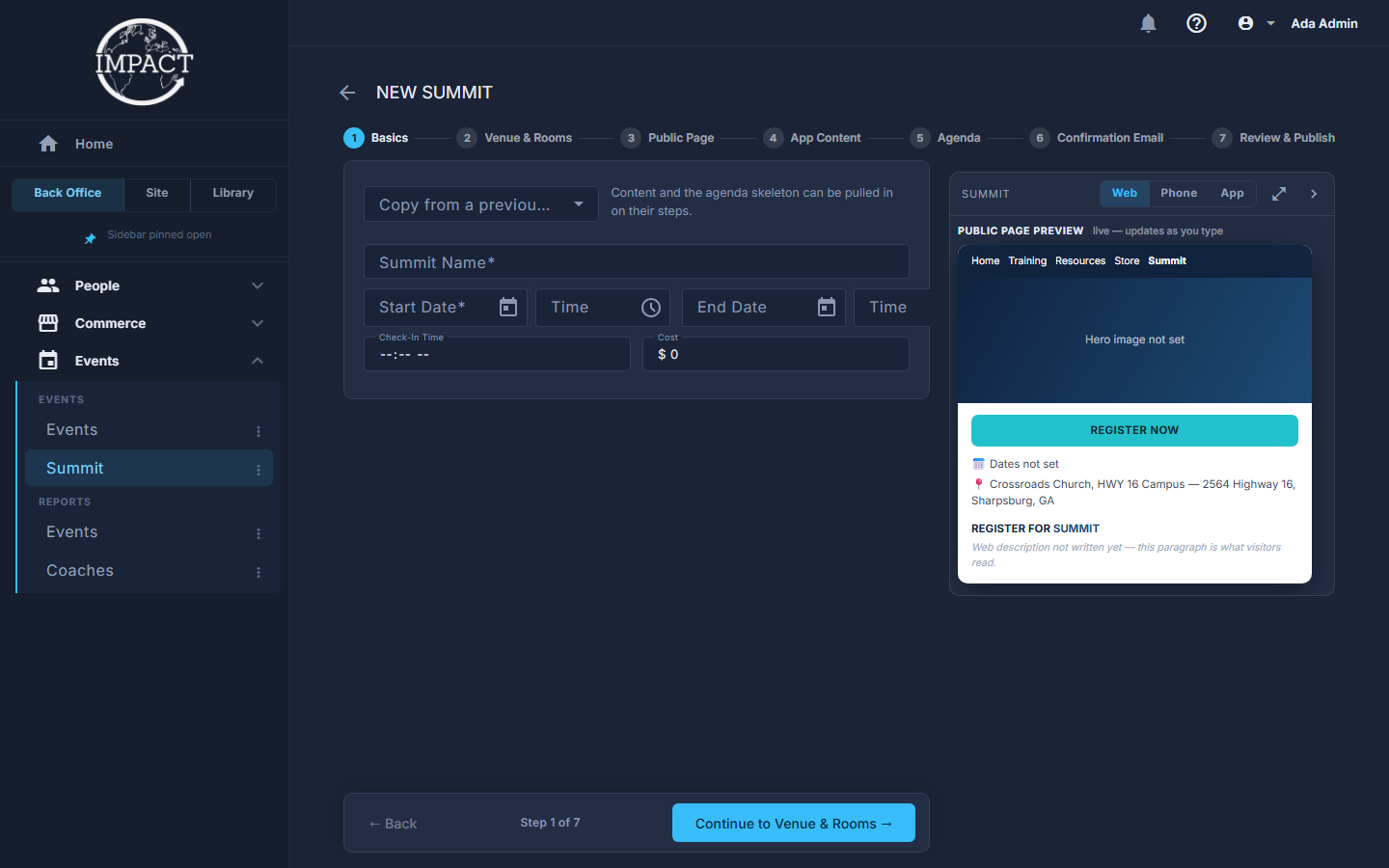
Open Back Office, then Events, then Summit, and press New Summit.
On Basics, start from a previous summit if you have one.
Copy from a previous summit does not copy anything yet - it makes Copy Content from and Copy Agenda from buttons appear on the App Content and Agenda steps, so you take what you want.

Copy from a previous summit, on Basics. Work through the seven steps.
Basics, Venue & Rooms, Public Page, App Content, Agenda, Confirmation Email, then Review & Publish. The chips at the top show where you are; a tick marks a step you have passed.

The seven steps of the wizard. Move with the one Back / Continue bar at the foot.
Continue names where it goes. On the Agenda step the same bar walks the agenda builder's own four steps - Days, Single Items, Breakout Blocks, Review Schedule - before it moves on to the Confirmation Email.

Back, where you are, and Continue to the next step. Check the preview beside every step.
It is the same rail the summit editor has: Web and Phone are the public page, App is what an attendee sees in the event app. It redraws as you type.
On Review & Publish, press Create (Not Live) or Publish & Go Live.
The checklist shows what is still missing. You can create it with gaps and finish it from the ordinary edit screen afterwards. Create (Not Live) makes it a Draft - or Early Bird, with Open early registration ticked - and Publish & Go Live makes it Open.
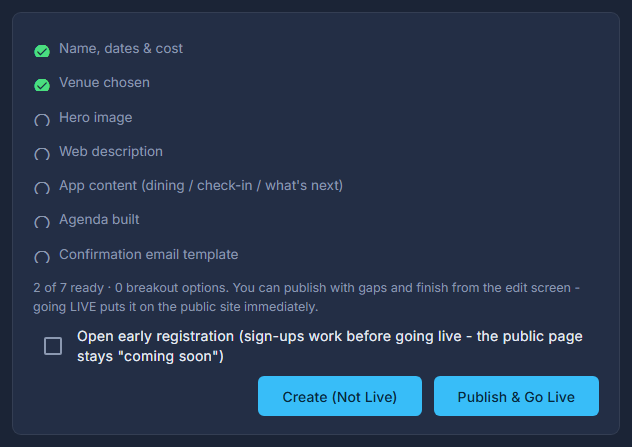
Review & Publish: the checklist and the two ways to create it.
Save Draft & Exit, at the top from the second step on, creates the summit without putting it live, so you can finish it later from the normal edit screen.
Publish & Go Live puts the summit on the public site immediately.
No Summit row means your ministry does not have it switched on. It is an extra, like Coaches.