The picture and the description are what a visitor sees before they decide. The registration page crops the picture to a small thumbnail, so you choose which part of it survives.
The screens pictured here are an example ministry’s, so the names and figures in them are not yours. Everything they show works the same way in your own admin.
Open the event and press Image & Description on the strip.
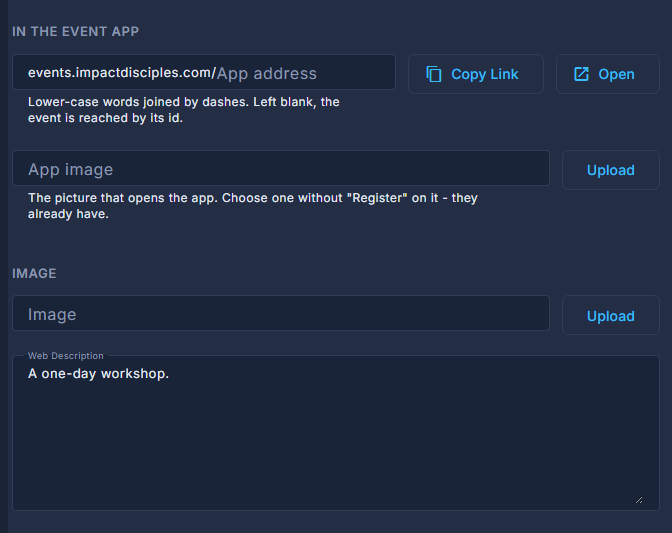
Press Upload beside Image and pick a picture.
Once it is there, drag the point on it to choose the part that stays in the thumbnail on the registration page.
Write the Web Description.
If your ministry has the event app, fill in App address.
Lower-case words joined by dashes, like summit-2027. Left blank, the event is reached by its id. Copy Link copies the address attendees open; Open opens it.
Choose an App image if the event image says Register on it.
It is the picture that opens the app for somebody who has already registered. Left blank, the event image is used.
Press Save.