One event holds everything about itself - when it is, where, what it costs, what you ask the people who come, and the email they get back. None of it is on your website until you switch Live on, so you can fill it in over several sittings.
The screens pictured here are an example ministry’s, so the names and figures in them are not yours. Everything they show works the same way in your own admin.
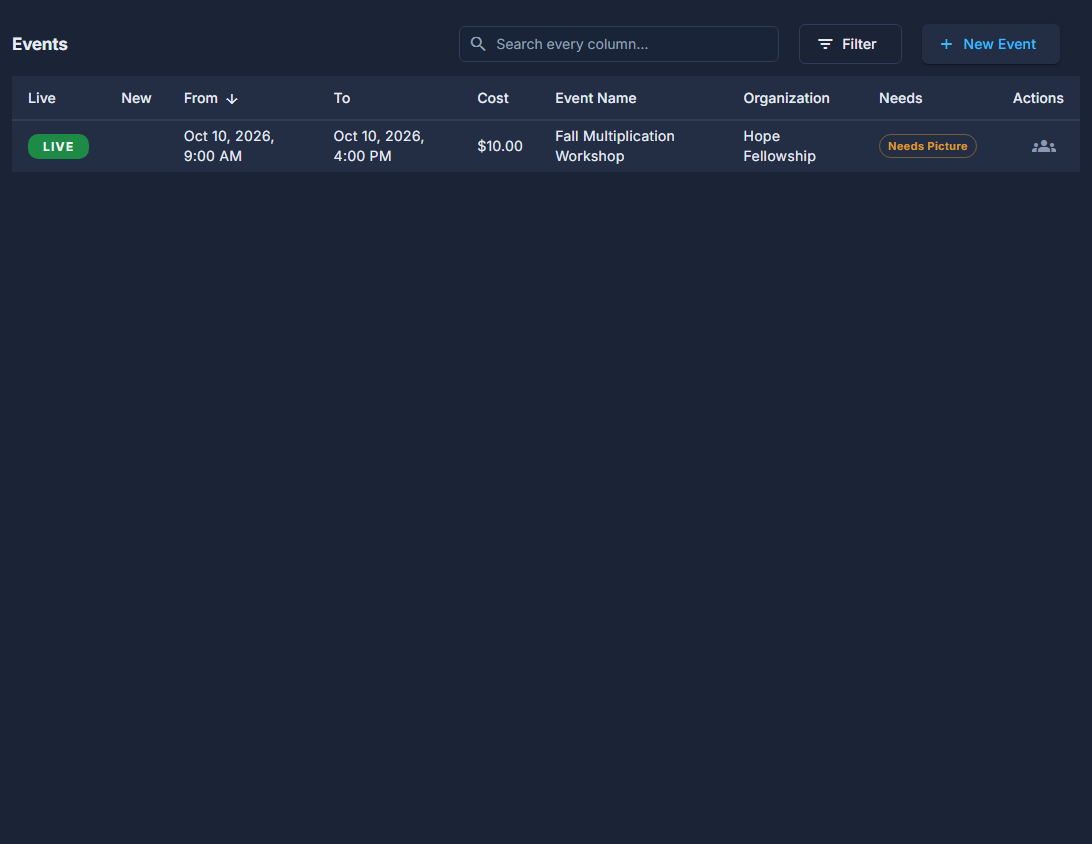
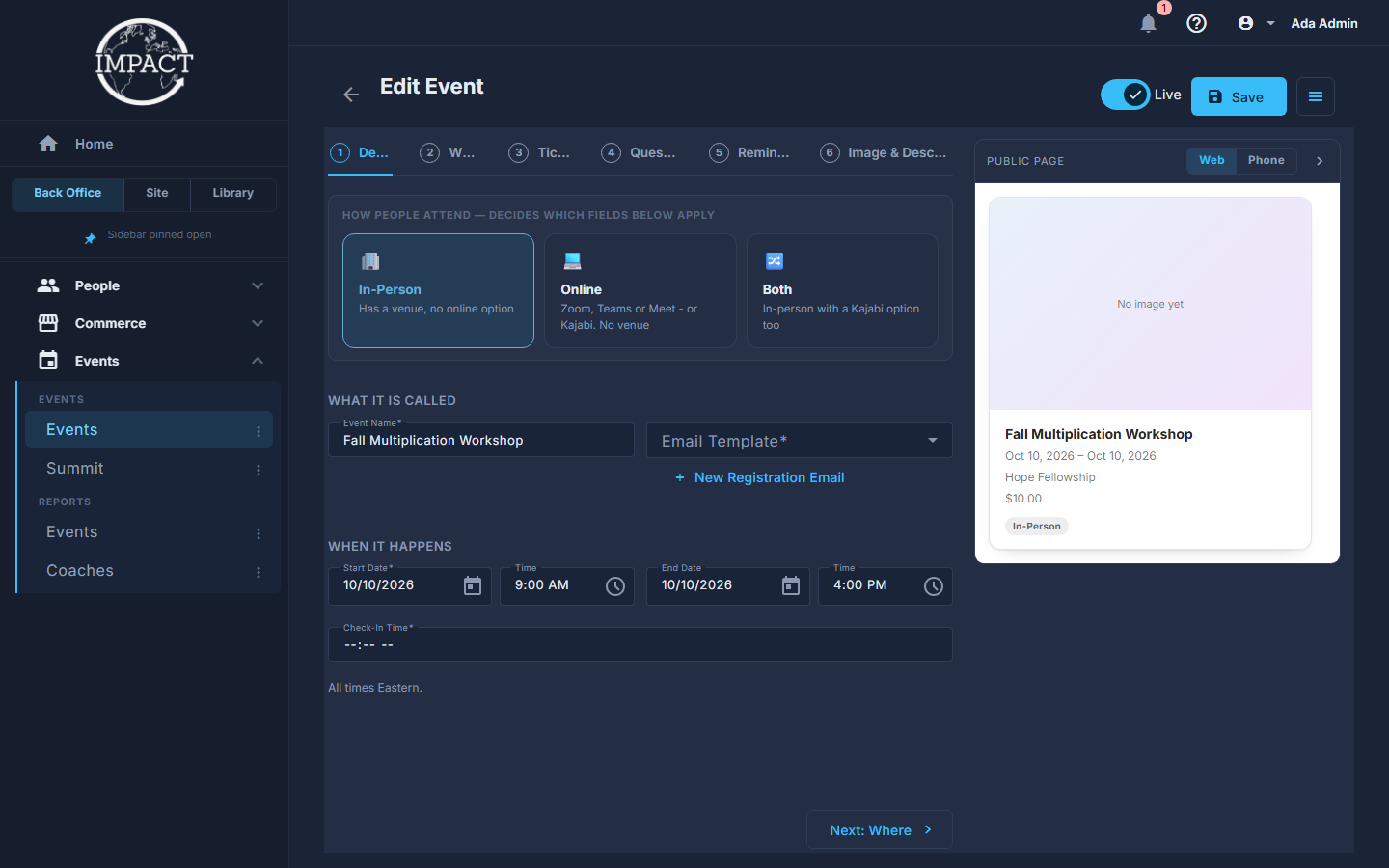
Open Back Office, then Events, then Events, and press New Event.
Say how people attend: In-Person, Online or Both.
This decides what the rest of the form asks for - a venue for in-person, a meeting link or Kajabi for online.
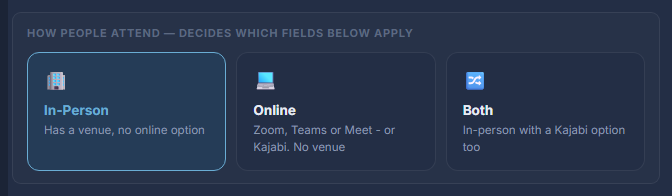
How people attend, at the top of Details. Fill in Details: the name, the email template, the dates.
Only Event Name and Start Date have to be there. Email Template is what somebody receives when they register; the pencil beside it opens that email, and New Registration Email makes one. All times are Eastern.
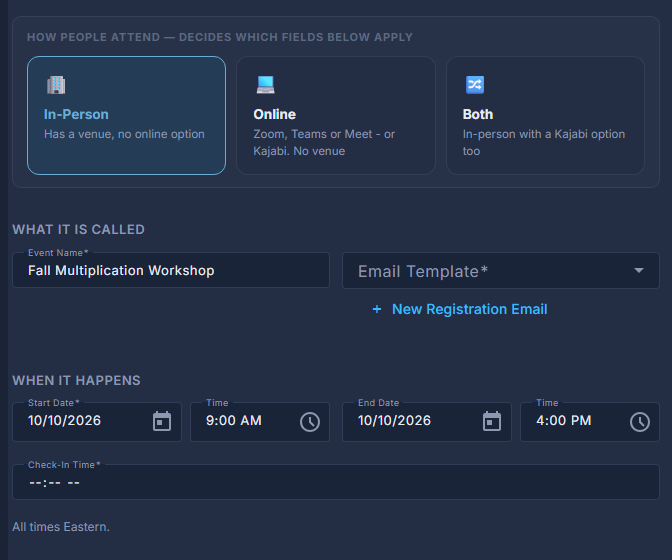
Details: what it is called and when it happens. Work along the strip: Details, Where, Tickets, Questions, Reminders, Image & Description.
It is a menu, not a wizard. Go in any order and come back - a section with something wrong in it is marked with a warning, so a missing field cannot hide two sections away. Next at the foot of each section walks you along in order.

The six sections of an ordinary event. Press Save.
Save stays at the top of the screen wherever you have scrolled to; the back arrow leaves without saving. Saving with a required field empty opens the section holding it.
The public page beside the form redraws as you type, with a Web | Phone switch. The chevron beside it hides the preview for more room.
Double-clicking a row opens the event for editing. The people icon on the row opens its attendees.
The Needs column says what an event is still missing - No Venue, Needs Picture, No Description - so a half-finished one is plain from the list.