Registrations are not inside the event form. They have a screen of their own, reached from the event's row, because it is what you work from on the day rather than something you edit.
The screens pictured here are an example ministry’s, so the names and figures in them are not yours. Everything they show works the same way in your own admin.
Open Back Office, then Events, then Events, and press the people icon on the event's row.
Double-clicking the row opens the event for editing instead. For a summit the same icon is a hub and opens the Command Center, with this list at the foot of it.
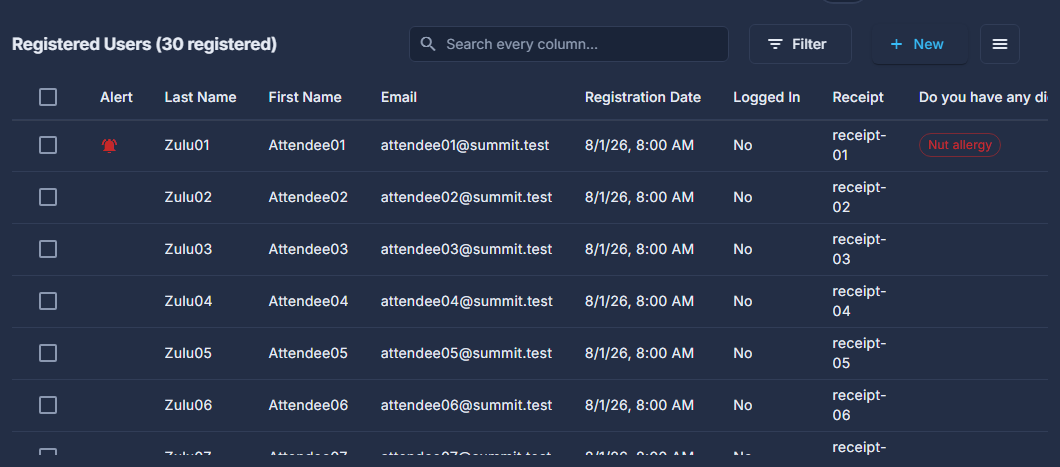
Read the list.
Last name, first name, email, when they registered, whether they have checked in or logged in to the app, their ticket when more than one kind is sold, any alert, and their receipt, with a count in the heading. Your own questions are extra columns, with an alerting answer in red. The search box finds anyone registered, however long the list. Double-click a row to open one registration.
Press Create Check-In Code before the day.
Share the code and the App link with whoever is on the door: they open the link on a phone, install the app, and type the code and their name. The code works until 12 hours after the event ends, and Reset Code replaces it if it gets out. At a summit this is a card in the Command Center.

Check-in at the door, before a code has been made. Open the ☰ at the top of the list for the rest.
New, beside it, adds a registration by hand. Under the ☰, Email Registered Users writes to everybody, Send the Link Again re-sends an online event's meeting link, and Export to Excel and Columns work as on any list.

The attendee list's menu. Work the waiting list.
If you set a Capacity and it fills, the event page offers people a place in line instead. They are listed underneath in the order they joined, and Promote moves one into the event.
Promote registers that person and sends them the confirmation email, even when the event is full. It is not a shortlist.
The trash can on a row deletes that registration. Nothing is refunded by it.
Cancelled registrations are listed underneath and stop counting against the Capacity. Somebody who cancels is not refunded automatically - a paid registration may still be owed one, and Purchase on that row opens the order.
No check-in panel means the event is online or a Kajabi course: there is no door to check anybody in at.