On the day, and in the weeks before it, the questions are the same: how many are coming, who has not chosen their breakouts, which sessions are full, and who is waiting for a seat. The Command Center answers all of them on one screen and lets you act on each.
The screens pictured here are an example ministry’s, so the names and figures in them are not yours. Everything they show works the same way in your own admin.
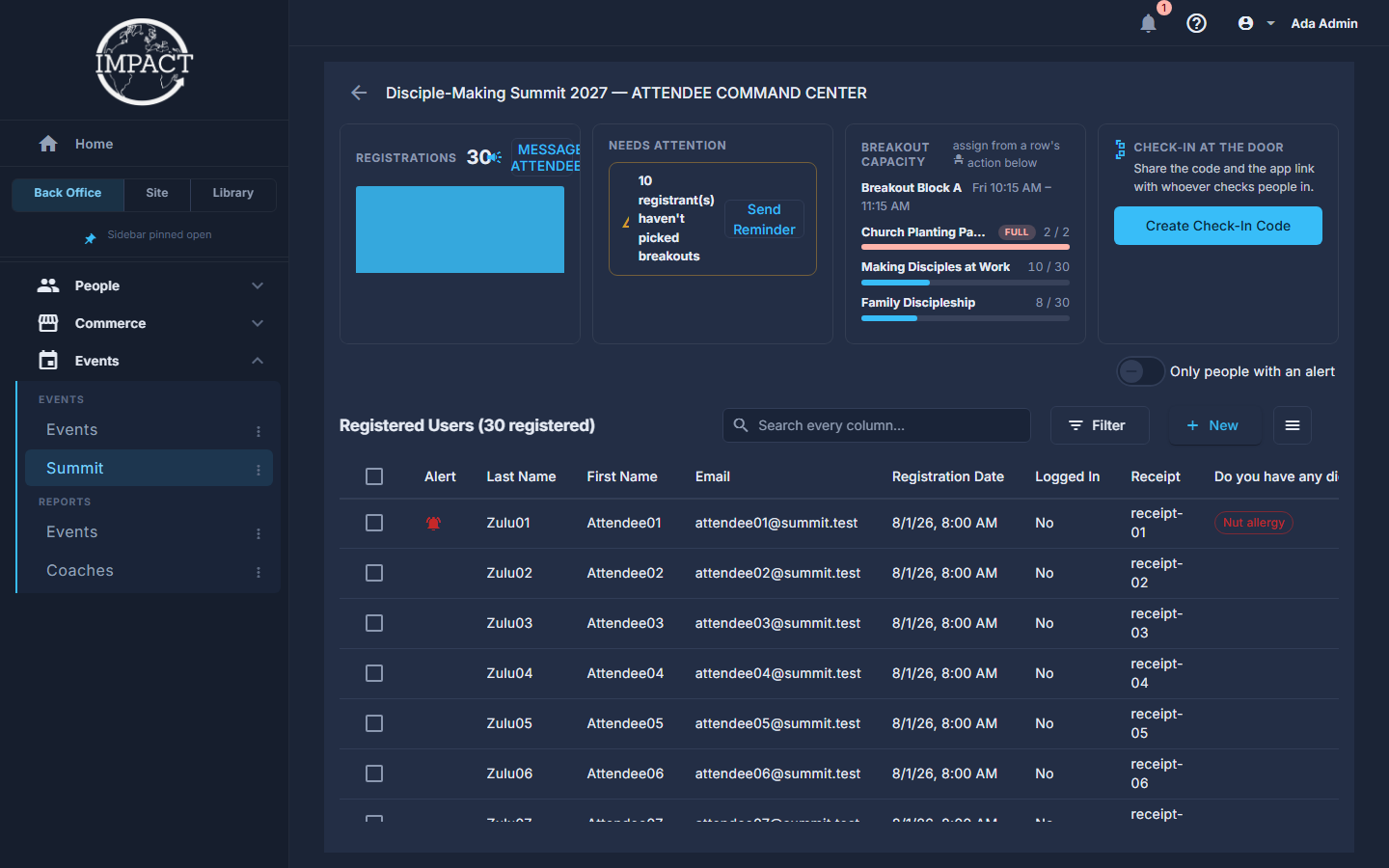
Open Back Office, then Events, then Summit, and press the hub icon on the summit's row.
Read Registrations.
The count, and a bar for each week. The refresh icon reloads registrations and queues.
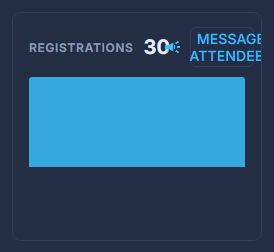
Registrations, week by week, with Message Attendees beside the count. Act on Needs Attention.
Send Reminder emails everybody who has not picked breakouts yet. A count waiting in queues points you to the Breakout Capacity card beside it.
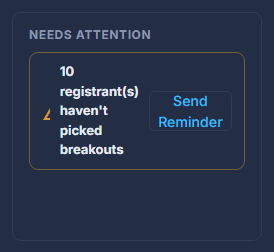
Needs Attention: who has not picked, and who is queued. Watch Breakout Capacity.
Every block, every option, how full it is - NEARLY FULL in amber, FULL in red - and under a full one its waiting list in order. The up arrow promotes somebody into the session, even when it is full; the cross takes them off the list.
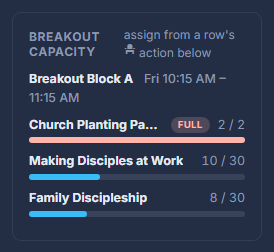
Breakout Capacity, one bar per option. Press the seat icon on a row to change one person's breakouts.
One session per block, the same rule they have on the public schedule. Assign, Remove, or Add to Queue when it is full. Changes save immediately and the public counters follow.
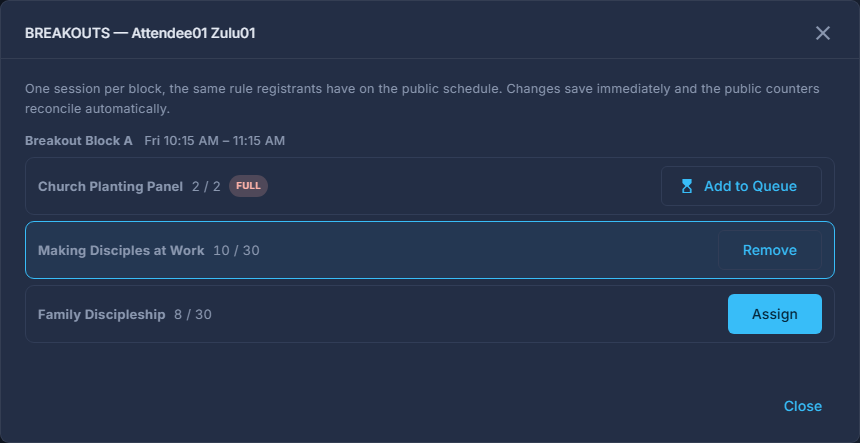
BREAKOUTS for one attendee: their seat in each block. Make the door's code on the Check-In card.
Create Check-In Code, the App link and Reset Code, as on any event. It shows during the summit's days.
Work the list at the foot as on any event.
Email Registered Users, export, and the cancelled and waiting lists.
Promoting somebody into a full session gives them a place over its cap. Staff can; the public page cannot.
A place being held is marked holding: it counts against the session until the offer runs out.