An event you have saved is not on your website yet. Live is the one switch that lists it and opens it for registration.
The screens pictured here are an example ministry’s, so the names and figures in them are not yours. Everything they show works the same way in your own admin.

Open Back Office, then Events, then Events, and open the event.
Switch Live on, at the top of the screen.
On: shown on the website and open for registration. Off: hidden, and its page says the event is no longer available.
Check what the public will see in the rail beside the form.
PUBLIC PAGE redraws as you type. Web | Phone shows it at either width.
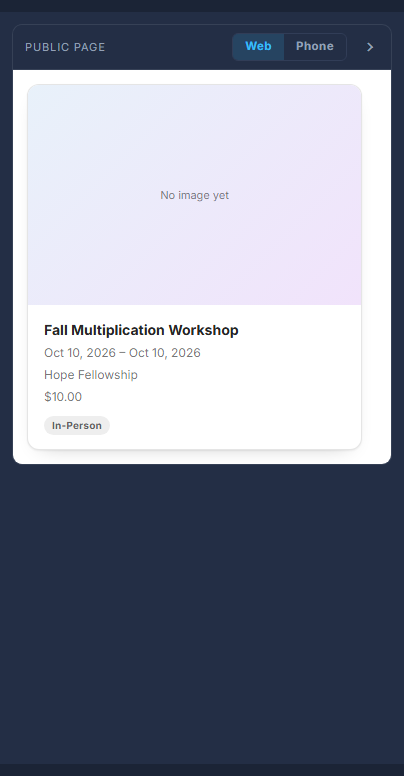
The public page beside the form, with Web | Phone. Check the first column of the list.
It reads LIVE or INACTIVE for every event, so you can see at a glance what the public can find.
To take it down again, switch Live off.
The registrations you have already taken are kept. This only decides what a visitor sees.
Switching Live on puts the event on your website straight away and opens it to registration. There is no second step to publish it.
A summit has no Live switch. It moves through stages instead - Draft, Coming Soon, Early Bird, Open - and Open is what the list calls Live.
Live also puts the event on the front door of the event app, for a ministry that has one.